---
title: Wirelessly linking a Lightwave relay and dimmer using a Group Automation
description: This article provides a step by step guide on how to create a group automation which is primarily used for controlling a lightwave relay(s) or socket(s) wirelessly from a Lightwave dimmer or wire-free scene selector
---
[Skip to content](https://support.lightwaverf.com/knowledge/wirelessly-linking-a-lightwave-relay-and-dimmer-using-a-group-automation#main-content)
Open main navigation
Close main navigation
- [WhatsApp: +44 7480 784990](https://wa.me/+447480784990)
[WhatsApp: +44 7480 784990](https://wa.me/+447480784990)
How can we help you?
- There are no suggestions because the search field is empty.
1. [Help Center](https://support.lightwaverf.com/knowledge?hsLang=en)
2. [App Guidance & Automations](https://support.lightwaverf.com/knowledge/app-guidance-automations?hsLang=en)
3. [Automations](https://support.lightwaverf.com/knowledge/app-guidance-automations?hsLang=en#automations)
# Wirelessly linking a Lightwave relay and dimmer using a Group Automation
## This article explains how to set up a Lightwave relay and dimmer to communicate wirelessly using a Group Automation in the Lightwave app, including important wiring warnings and step-by-step setup instructions.
---
### ✅ Before You Start
Before creating the automation:
- Both the relay and dimmer must already be paired to the Lightwave app
- Both devices should appear online in the app
- The Link Plus Hub should show a solid green LED
---
### 🔗 How to Create a Group Automation
Follow these steps to make the relay and dimmer communicate wirelessly:
1. Open the **Lightwave App**
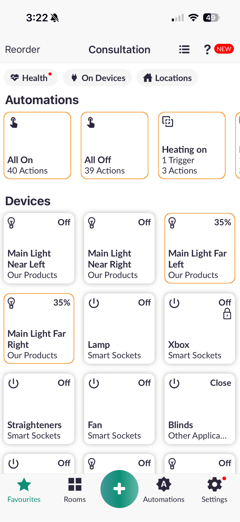
2. Tap the green **+** button at the bottom centre of the screen
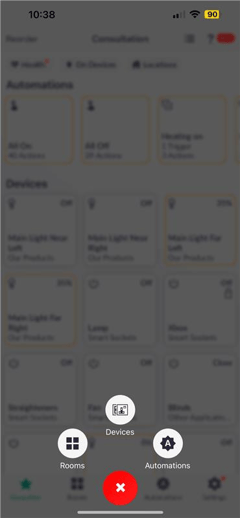
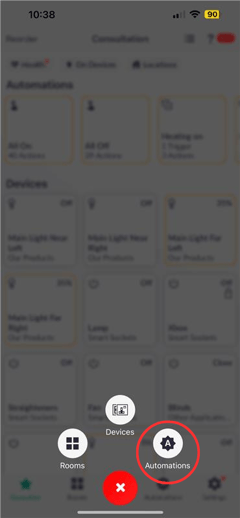
3. Select **Automations**
4. Tap **Group**
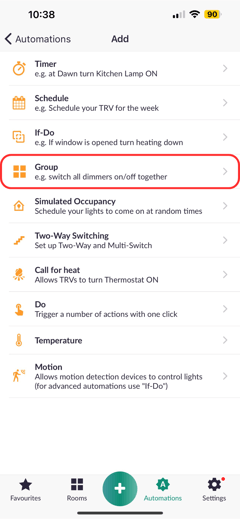
5. Select **Switch**
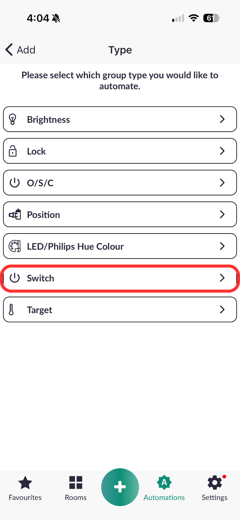
6. Select both:
- The Relay
- The Dimmer
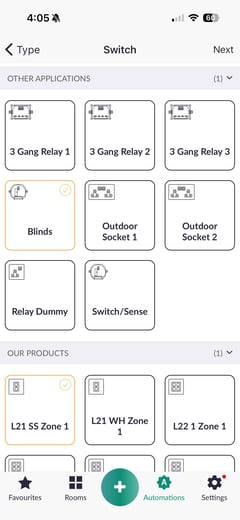
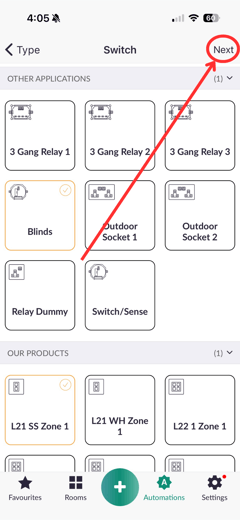
7. Tap **Next**
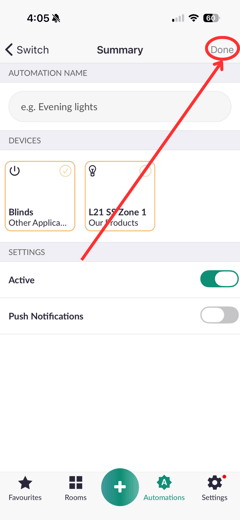
8. Enter a name for the automation
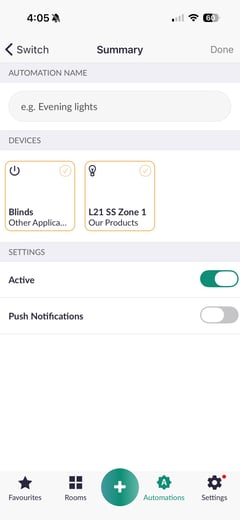
9. Tap **Done** in the top-right corner
---
### ✅ What Happens After Setup?
Once the Group automation is created:
- The dimmer and relay will mirror each other
- Turning one device on or off will control the other
- Communication happens wirelessly through the Link Plus Hub
This is ideal for setups where devices cannot be physically wired together.
---
### 💡 Additional Notes
- Group automations require the Link Plus Hub to remain powered
- Internet is only needed to create the automation
- Once created, automations continue to operate locally through the hub
---
### 📞 Need Further Help?
If the relay and dimmer are not responding correctly after setup:
- Check both devices are online in the app
- Confirm the Link Plus LED is solid green
- Restart the Link Plus Hub if needed
For further assistance, contact Lightwave Technical Support:
📞 0121 468 8987 (Option 2)
- [What do I need? & System Setup](https://support.lightwaverf.com/knowledge/what-do-i-need-system-setup?hsLang=en#main-content)
- [Getting started on the Lightwave App](https://support.lightwaverf.com/knowledge/what-do-i-need-system-setup?hsLang=en#getting-started-on-the-lightwave-app)
- [Lighting](https://support.lightwaverf.com/knowledge/what-do-i-need-system-setup?hsLang=en#lighting)
- [Heating](https://support.lightwaverf.com/knowledge/what-do-i-need-system-setup?hsLang=en#heating)
- [Automations](https://support.lightwaverf.com/knowledge/what-do-i-need-system-setup?hsLang=en#automations)
- [Third Party Integrations](https://support.lightwaverf.com/knowledge/what-do-i-need-system-setup?hsLang=en#third-party-integrations)
- [FAQ's](https://support.lightwaverf.com/knowledge/what-do-i-need-system-setup?hsLang=en#faqs)
- [Advanced Features](https://support.lightwaverf.com/knowledge/what-do-i-need-system-setup?hsLang=en#advanced-features)
- [App Guidance & Automations](https://support.lightwaverf.com/knowledge/app-guidance-automations?hsLang=en#main-content)
- [My Account](https://support.lightwaverf.com/knowledge/app-guidance-automations?hsLang=en#my-account)
- [App Guidance](https://support.lightwaverf.com/knowledge/app-guidance-automations?hsLang=en#app-guidance)
- [Automations](https://support.lightwaverf.com/knowledge/app-guidance-automations?hsLang=en#automations)
- [Troubleshooting](https://support.lightwaverf.com/knowledge/troubleshooting?hsLang=en#main-content)
- [General](https://support.lightwaverf.com/knowledge/troubleshooting?hsLang=en#general)
- [Lighting](https://support.lightwaverf.com/knowledge/troubleshooting?hsLang=en#lighting)
- [Heating](https://support.lightwaverf.com/knowledge/troubleshooting?hsLang=en#heating)
- [Power](https://support.lightwaverf.com/knowledge/troubleshooting?hsLang=en#power)
- [Automations & Hub](https://support.lightwaverf.com/knowledge/troubleshooting?hsLang=en#automations-hub)
- [Installation Guides](https://support.lightwaverf.com/knowledge/installation-guides?hsLang=en#main-content)
- [Link Plus Hub](https://support.lightwaverf.com/knowledge/installation-guides?hsLang=en#link-plus-hub)
- [Lighting](https://support.lightwaverf.com/knowledge/installation-guides?hsLang=en#lighting)
- [Power](https://support.lightwaverf.com/knowledge/installation-guides?hsLang=en#power)
- [Relays](https://support.lightwaverf.com/knowledge/installation-guides?hsLang=en#relays)
- [Heating](https://support.lightwaverf.com/knowledge/installation-guides?hsLang=en#heating)
- [Connect Series Support Archive](https://support.lightwaverf.com/knowledge/connect-series-support-archive?hsLang=en#main-content)
- [General](https://support.lightwaverf.com/knowledge/connect-series-support-archive?hsLang=en#general)
- [Lighting](https://support.lightwaverf.com/knowledge/connect-series-support-archive?hsLang=en#lighting)
- [Heating](https://support.lightwaverf.com/knowledge/connect-series-support-archive?hsLang=en#heating)
- [Power](https://support.lightwaverf.com/knowledge/connect-series-support-archive?hsLang=en#power)
- [Contact Us](https://support.lightwaverf.com/knowledge/contact-us?hsLang=en#main-content)
- [Product Returns](https://support.lightwaverf.com/knowledge/contact-us?hsLang=en#product-returns)
- [Contact Us](https://support.lightwaverf.com/knowledge/contact-us?hsLang=en#contact-us)
[-1.png?width=58&height=24&name=Lightwave%20Logo%20Green%20Small%20(320%20x%20132)-1.png "Chill listening crop-3")](http://lightwaverf.com)
[mailto:email@email.com](mailto:email@email.com)
Copyright © 2025, Lightwave