🔧 Step-by-Step Guide
1. Open the Lightwave app
Launch the Lightwave app on your smartphone or tablet.
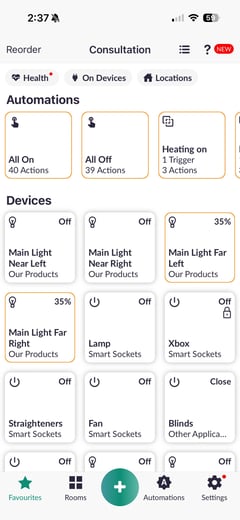
2. Select Your Device
Navigate to the room where your device (e.g. dimmer) is located.
-png.png?width=240&height=521&name=Untitled%20design%20(95)-png.png)
-png-1.png?width=240&height=521&name=Untitled%20design%20(96)-png-1.png)
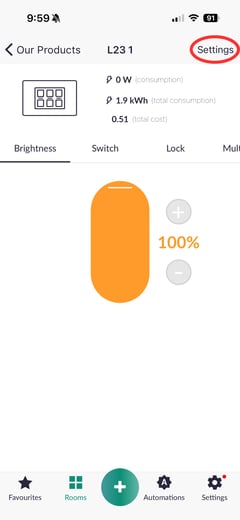
3. Open Device Settings
Press and hold the devices tile to open its control screen, then access its settings.
-png.png?width=240&height=520&name=Untitled%20design%20(97)-png.png)
4. Enable ‘Include in Favourites’
Find and toggle on “Include in Favourites”.
-png.png?width=240&height=520&name=Untitled%20design%20(98)-png.png)
🔄 Tips
- The Favourites page is ideal for devices you use daily, such as main lights or frequently used sockets
- You can add or remove devices from Favourites at any time via their settings
- Keeping your Favourites list organised makes controlling your home quicker and easier
❓ Need Help?
If you’re having trouble adding devices to your Favourites page, please contact our support team:
support@lightwave.hs-inbox.com
0121 468 8987 option 2