---
title: How to Add Devices to the Link Plus App
description: Lightwave devices are paired to the app by going to the pairing screen, giving the device a name, putting the device into pairing mode and hitting the link button
---
[Skip to content](https://support.lightwaverf.com/knowledge/using-the-lightwave-link-plus-app-to-add-devices#main-content)
Open main navigation
Close main navigation
- [WhatsApp: +44 7480 784990](https://wa.me/+447480784990)
[WhatsApp: +44 7480 784990](https://wa.me/+447480784990)
How can we help you?
- There are no suggestions because the search field is empty.
1. [Help Center](https://support.lightwaverf.com/knowledge?hsLang=en)
2. [What do I need? & System Setup](https://support.lightwaverf.com/knowledge/what-do-i-need-system-setup?hsLang=en)
3. [Getting started on the Lightwave App](https://support.lightwaverf.com/knowledge/what-do-i-need-system-setup?hsLang=en#getting-started-on-the-lightwave-app)
# How to Add Devices to the Link Plus App
## This guide walks you through the steps to successfully pair new devices with your Link Plus hub.
The Lightwave Link Plus app allows you to easily connect and control your Lightwave smart devices. Whether you're setting up a new home automation system or expanding your existing setup, pairing new devices is a simple process. Before you begin, make sure your device is in pairing mode and your smartphone is connected to the same network as your Lightwave Link Plus hub.
1. **Open the Lightwave Link Plus App**
Launch the Lightwave Link Plus app on your smartphone or tablet.
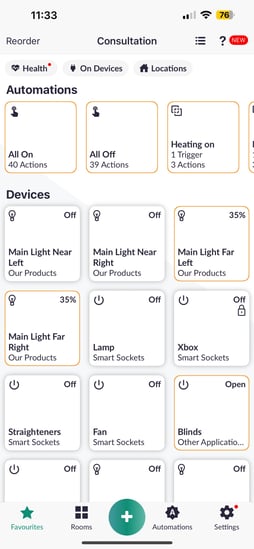
2. **Tap the Green Plus (+) Button**
On the main screen, press the **green plus (+)** button in the center to start adding a new device.
-png-2.png?width=254&height=550&name=Untitled%20design%20(7)-png-2.png)
3. **Select “Devices”**
Choose **“Devices”** from the list of available options.
-png-2.png?width=254&height=550&name=Untitled%20design%20(8)-png-2.png)
4. **Name Your Device**
Enter a name for your new device, such as **“Porch Spotlights”**, to help identify it in the app.
-png-2.png?width=254&height=550&name=Untitled%20design%20(9)-png-2.png)
5. **Put Your Device into Pairing Mode**
Before using the app, ensure the Lightwave device is in **pairing mode**. Typically, this is shown by the LED flashing **red and blue alternately**. If it's not flashing, refer to the specific [device’s user manual](https://support.lightwaverf.com/knowledge/how-to-put-your-devices-into-pairing-mode?hsLang=en) for instructions.
6. **Initiate Pairing**
Once your device is in pairing mode, hit the **green** **Link button.**
**Important:** Before pressing the Link button, ensure your device is still flashing **red and blue alternately**.
If it has stopped flashing, follow the specific device instructions to re-enter pairing mode.
---
**Troubleshooting Tips:**
- Make sure the device is in pairing mode when you attempt to pair. If your device flashes Red when entering pairing mode, please clear the memory of the device by performing a [**master reset**](https://support.lightwaverf.com/knowledge/master-resetting-our-devices?hsLang=en)
- If pairing times out, try again. If the issue still persists, your Link Plus hub may to too far away from the device. You can find out more about the optimal position for your Link Plus [**here**](https://support.lightwaverf.com/knowledge/where-should-i-place-my-link-plus-hub?hsLang=en)
- [What do I need? & System Setup](https://support.lightwaverf.com/knowledge/what-do-i-need-system-setup?hsLang=en#main-content)
- [Getting started on the Lightwave App](https://support.lightwaverf.com/knowledge/what-do-i-need-system-setup?hsLang=en#getting-started-on-the-lightwave-app)
- [Lighting](https://support.lightwaverf.com/knowledge/what-do-i-need-system-setup?hsLang=en#lighting)
- [Heating](https://support.lightwaverf.com/knowledge/what-do-i-need-system-setup?hsLang=en#heating)
- [Automations](https://support.lightwaverf.com/knowledge/what-do-i-need-system-setup?hsLang=en#automations)
- [Third Party Integrations](https://support.lightwaverf.com/knowledge/what-do-i-need-system-setup?hsLang=en#third-party-integrations)
- [FAQ's](https://support.lightwaverf.com/knowledge/what-do-i-need-system-setup?hsLang=en#faqs)
- [Advanced Features](https://support.lightwaverf.com/knowledge/what-do-i-need-system-setup?hsLang=en#advanced-features)
- [App Guidance & Automations](https://support.lightwaverf.com/knowledge/app-guidance-automations?hsLang=en#main-content)
- [My Account](https://support.lightwaverf.com/knowledge/app-guidance-automations?hsLang=en#my-account)
- [App Guidance](https://support.lightwaverf.com/knowledge/app-guidance-automations?hsLang=en#app-guidance)
- [Automations](https://support.lightwaverf.com/knowledge/app-guidance-automations?hsLang=en#automations)
- [Troubleshooting](https://support.lightwaverf.com/knowledge/troubleshooting?hsLang=en#main-content)
- [General](https://support.lightwaverf.com/knowledge/troubleshooting?hsLang=en#general)
- [Lighting](https://support.lightwaverf.com/knowledge/troubleshooting?hsLang=en#lighting)
- [Heating](https://support.lightwaverf.com/knowledge/troubleshooting?hsLang=en#heating)
- [Power](https://support.lightwaverf.com/knowledge/troubleshooting?hsLang=en#power)
- [Automations & Hub](https://support.lightwaverf.com/knowledge/troubleshooting?hsLang=en#automations-hub)
- [Installation Guides](https://support.lightwaverf.com/knowledge/installation-guides?hsLang=en#main-content)
- [Link Plus Hub](https://support.lightwaverf.com/knowledge/installation-guides?hsLang=en#link-plus-hub)
- [Lighting](https://support.lightwaverf.com/knowledge/installation-guides?hsLang=en#lighting)
- [Power](https://support.lightwaverf.com/knowledge/installation-guides?hsLang=en#power)
- [Relays](https://support.lightwaverf.com/knowledge/installation-guides?hsLang=en#relays)
- [Heating](https://support.lightwaverf.com/knowledge/installation-guides?hsLang=en#heating)
- [Connect Series Support Archive](https://support.lightwaverf.com/knowledge/connect-series-support-archive?hsLang=en#main-content)
- [General](https://support.lightwaverf.com/knowledge/connect-series-support-archive?hsLang=en#general)
- [Lighting](https://support.lightwaverf.com/knowledge/connect-series-support-archive?hsLang=en#lighting)
- [Heating](https://support.lightwaverf.com/knowledge/connect-series-support-archive?hsLang=en#heating)
- [Power](https://support.lightwaverf.com/knowledge/connect-series-support-archive?hsLang=en#power)
- [Contact Us](https://support.lightwaverf.com/knowledge/contact-us?hsLang=en#main-content)
- [Product Returns](https://support.lightwaverf.com/knowledge/contact-us?hsLang=en#product-returns)
- [Contact Us](https://support.lightwaverf.com/knowledge/contact-us?hsLang=en#contact-us)
[-1.png?width=58&height=24&name=Lightwave%20Logo%20Green%20Small%20(320%20x%20132)-1.png "Chill listening crop-3")](http://lightwaverf.com)
[mailto:email@email.com](mailto:email@email.com)
Copyright © 2025, Lightwave