---
title: Managing Users and Access in the Lightwave App
description: In this article, you will learn how to add more users to your account, transfer ownership and view the individuals who have access to your Lightwave setup this is useful when moving house
---
[Skip to content](https://support.lightwaverf.com/knowledge/managing-users-and-access-in-the-lightwave-app#main-content)
Open main navigation
Close main navigation
- [WhatsApp: +44 7480 784990](https://wa.me/+447480784990)
[WhatsApp: +44 7480 784990](https://wa.me/+447480784990)
How can we help you?
- There are no suggestions because the search field is empty.
1. [Help Center](https://support.lightwaverf.com/knowledge?hsLang=en)
2. [App Guidance & Automations](https://support.lightwaverf.com/knowledge/app-guidance-automations?hsLang=en)
3. [My Account](https://support.lightwaverf.com/knowledge/app-guidance-automations?hsLang=en#my-account)
# Managing Users and Access in the Lightwave App
## This article explains how to invite users, transfer ownership, and manage access to your Lightwave home through the Lightwave app.
### 🏠 Accessing Location Management
To begin managing users and access, open the Lightwave app and go to:
**Settings \> Location Management \> User Management**
This section allows you to invite others, transfer ownership, and view or remove existing users.
---
### 👥 Option 1 – Invite a User
You can share control of your Lightwave system with other trusted individuals, such as family members, partners, or carers.
#### Steps to Invite:
1. Ensure the invitee has:
- Installed the **Lightwave app**
- Created a **Lightwave account** (This can be done after an invite has been sent)
2. Go to **Settings \> Location Management \> Invite User**
3. Enter the invitee’s **email address**
4. Tap **Invite**
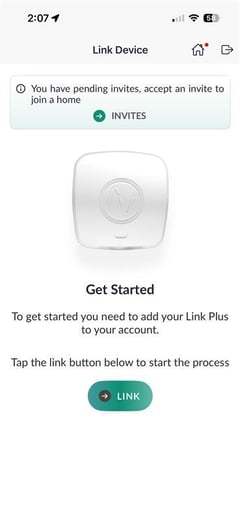
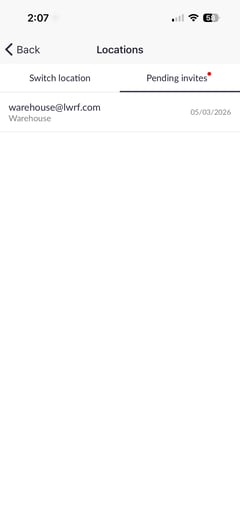
> When you have been invited to an account, you will first need to create your own account in the Lightwave app. After signing up and logging in, a pop-up notification will appear.
>
> **Invite Pop-Up**
>
> 
>
> **Pending Invites**
>
> ****
>
> **Accept Button on Pending Invites**
>
> ****
>
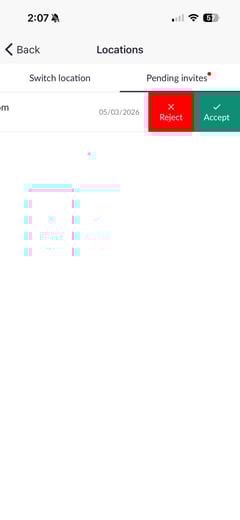
> Tap **Invites**, and you will be taken to the **Pending Invites** screen. From here, simply swipe left on the invitation and tap **Accept** to join the account.
---
### 🔄 Option 2 – Transfer Ownership
Use this feature if you wish to change the **primary owner** of your Lightwave setup (e.g., when moving home).
#### Important:
- The new owner must have already:
- Installed the Lightwave app
- Created a Lightwave account (This can be done after an invite has been sent)
- After transfer:
- They will receive an email with login instructions
- You will **lose access** once they log in and accept the Ownership Invite
> ⚠️ Ownership transfer is permanent and should only be used when full account control needs to change hands. Once ownership is transferred, the user must go to **Locations\>Pending Invites\>Swipe Left\>Press Tick** and will then gain access to control devices within the Lightwave account. The previous account owner will have access until these steps are completed.
---
### 🗝️ Option 3 – Users and Access
This section allows you to view all users linked to your Lightwave location and manage their access.
#### To Remove a User:
1. Navigate to **Settings \> Location Management \> User Management \> Users and Access**
2. Swipe left on the user you wish to remove
3. Enter your **Lightwave password** to confirm
> 🔐 This extra step prevents accidental user removal and adds security.
This is especially helpful if, for instance, your electrician or installer originally set up your system but no longer needs access.
- [What do I need? & System Setup](https://support.lightwaverf.com/knowledge/what-do-i-need-system-setup?hsLang=en#main-content)
- [Getting started on the Lightwave App](https://support.lightwaverf.com/knowledge/what-do-i-need-system-setup?hsLang=en#getting-started-on-the-lightwave-app)
- [Lighting](https://support.lightwaverf.com/knowledge/what-do-i-need-system-setup?hsLang=en#lighting)
- [Heating](https://support.lightwaverf.com/knowledge/what-do-i-need-system-setup?hsLang=en#heating)
- [Automations](https://support.lightwaverf.com/knowledge/what-do-i-need-system-setup?hsLang=en#automations)
- [Third Party Integrations](https://support.lightwaverf.com/knowledge/what-do-i-need-system-setup?hsLang=en#third-party-integrations)
- [FAQ's](https://support.lightwaverf.com/knowledge/what-do-i-need-system-setup?hsLang=en#faqs)
- [Advanced Features](https://support.lightwaverf.com/knowledge/what-do-i-need-system-setup?hsLang=en#advanced-features)
- [App Guidance & Automations](https://support.lightwaverf.com/knowledge/app-guidance-automations?hsLang=en#main-content)
- [My Account](https://support.lightwaverf.com/knowledge/app-guidance-automations?hsLang=en#my-account)
- [App Guidance](https://support.lightwaverf.com/knowledge/app-guidance-automations?hsLang=en#app-guidance)
- [Automations](https://support.lightwaverf.com/knowledge/app-guidance-automations?hsLang=en#automations)
- [Troubleshooting](https://support.lightwaverf.com/knowledge/troubleshooting?hsLang=en#main-content)
- [General](https://support.lightwaverf.com/knowledge/troubleshooting?hsLang=en#general)
- [Lighting](https://support.lightwaverf.com/knowledge/troubleshooting?hsLang=en#lighting)
- [Heating](https://support.lightwaverf.com/knowledge/troubleshooting?hsLang=en#heating)
- [Power](https://support.lightwaverf.com/knowledge/troubleshooting?hsLang=en#power)
- [Automations & Hub](https://support.lightwaverf.com/knowledge/troubleshooting?hsLang=en#automations-hub)
- [Installation Guides](https://support.lightwaverf.com/knowledge/installation-guides?hsLang=en#main-content)
- [Link Plus Hub](https://support.lightwaverf.com/knowledge/installation-guides?hsLang=en#link-plus-hub)
- [Lighting](https://support.lightwaverf.com/knowledge/installation-guides?hsLang=en#lighting)
- [Power](https://support.lightwaverf.com/knowledge/installation-guides?hsLang=en#power)
- [Relays](https://support.lightwaverf.com/knowledge/installation-guides?hsLang=en#relays)
- [Heating](https://support.lightwaverf.com/knowledge/installation-guides?hsLang=en#heating)
- [Accessories](https://support.lightwaverf.com/knowledge/installation-guides?hsLang=en#accessories)
- [Connect Series Support Archive](https://support.lightwaverf.com/knowledge/connect-series-support-archive?hsLang=en#main-content)
- [General](https://support.lightwaverf.com/knowledge/connect-series-support-archive?hsLang=en#general)
- [Lighting](https://support.lightwaverf.com/knowledge/connect-series-support-archive?hsLang=en#lighting)
- [Heating](https://support.lightwaverf.com/knowledge/connect-series-support-archive?hsLang=en#heating)
- [Power](https://support.lightwaverf.com/knowledge/connect-series-support-archive?hsLang=en#power)
- [Contact Us](https://support.lightwaverf.com/knowledge/contact-us?hsLang=en#main-content)
- [Product Returns](https://support.lightwaverf.com/knowledge/contact-us?hsLang=en#product-returns)
- [Contact Us](https://support.lightwaverf.com/knowledge/contact-us?hsLang=en#contact-us)
[-1.png?width=58&height=24&name=Lightwave%20Logo%20Green%20Small%20(320%20x%20132)-1.png "Chill listening crop-3")](http://lightwaverf.com)
[mailto:email@email.com](mailto:email@email.com)
Copyright © 2025, Lightwave