What the Lock Feature Does
The Lock feature allows you to disable the physical (hardware) controls on a Lightwave device. When enabled, the buttons or touch controls on the device itself will no longer operate it and the device will flash purple when the buttons are pressed.
However, the device can still be fully controlled through the Lightwave app, allowing you to turn it on/off or adjust brightness remotely.
This feature is particularly useful if you want to:
-
Prevent accidental presses
-
Stop children or guests from changing settings
- Control kids screen time
-
Maintain automations or scheduled behaviour without manual interruption
How to Enable or Disable the Lock Feature
Follow the steps below to lock or unlock a device:
-
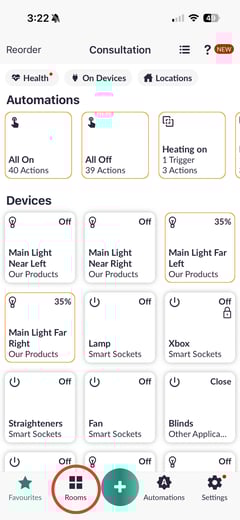
Open the Lightwave app and go to Rooms.
-
Select the room where the device is located.
-png.png?width=240&height=521&name=Untitled%20design%20(62)-png.png)
-
Press and hold the device tile you want to control.
-png.png?width=240&height=521&name=Untitled%20design%20(63)-png.png)
-
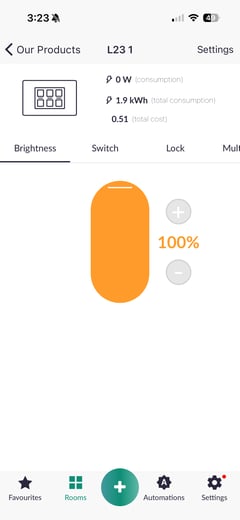
This will open the Brightness (for dimmers) or Switch control screen depending on the device.
-
Tap Lock.
-png.png?width=240&height=521&name=Untitled%20design%20(64)-png.png)
-
Tap the padlock icon to lock or unlock the device.
-png.png?width=240&height=521&name=Untitled%20design%20(65)-png.png)
When the device is locked, its hardware controls will be disabled, but it will continue to work normally through the app.