---
title: How to setup Mirroring
description: The Lightwave Mirroring feature lets one switch or device control another wirelessly. Follow this guide to set up mirrored devices using the Link Plus app.
---
[Skip to content](https://support.lightwaverf.com/knowledge/how-to-setup-mirroring#main-content)
Open main navigation
Close main navigation
- [WhatsApp: +44 7480 784990](https://wa.me/+447480784990)
[WhatsApp: +44 7480 784990](https://wa.me/+447480784990)
How can we help you?
- There are no suggestions because the search field is empty.
1. [Help Center](https://support.lightwaverf.com/knowledge?hsLang=en)
2. [App Guidance & Automations](https://support.lightwaverf.com/knowledge/app-guidance-automations?hsLang=en)
3. [Automations](https://support.lightwaverf.com/knowledge/app-guidance-automations?hsLang=en#automations)
# How to setup Mirroring
The Mirroring function on the Lightwave Link Plus app allows you to get a device to control (mirror) another device wirelessly.
---
### 🛠️ **Step-by-Step: How to Mirror a Device**
1. Open the **Lightwave Link Plus app**.
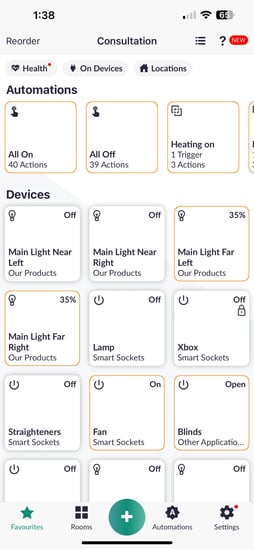
2. Tap on **Rooms** at the bottom of the screen.
-png-2.png?width=254&height=549&name=Untitled%20design%20(10)-png-2.png)
3. Select the room that contains the **master device** (this is the one you want to configure).
-png-2.png?width=254&height=550&name=Untitled%20design%20(11)-png-2.png)
4. **Press and hold** the tile for that device.
-png-2.png?width=254&height=550&name=Untitled%20design%20(12)-png-2.png)
5. Tap the **settings** (top-right corner).
-png-2.png?width=254&height=550&name=Untitled%20design%20(13)-png-2.png)
6. Scroll down and select **Multi-Press**.
-png-2.png?width=254&height=550&name=Untitled%20design%20(14)-png-2.png)
7. Tap **Mirror to another device**.
-png-1.png?width=254&height=550&name=Untitled%20design%20(15)-png-1.png)
8. From the list, **select the device** you want this one to mirror.
-png-1.png?width=254&height=550&name=Untitled%20design%20(16)-png-1.png)
9. Tap **Done** (top-right) to save your changes.
-png-1.png?width=254&height=550&name=Untitled%20design%20(17)-png-1.png)
---
### ✅ **What Happens Next?**
Once configured, pressing the master switch will also control the mirrored device. This is perfect for:
- All ON/OFF from a spare gang of a dimmer.
- Grouping lights or sockets
- Centralised control across rooms
---
### ⚠️ **Tips & Notes**
- Only configure mirroring on the **master device** (not both).
- Please set up a [2-way switching automation](https://support.lightwaverf.com/knowledge/how-to-set-up-a-two-way-switching-automation?hsLang=en) for 2-way & Multi-way switching between dimmers & wire-free dimmers
- The mirrored device must already be set up in the app.
- Multi-Press can also be used for **Custom Up/Down Button** actions for even more flexibility.
- [What do I need? & System Setup](https://support.lightwaverf.com/knowledge/what-do-i-need-system-setup?hsLang=en#main-content)
- [Getting started on the Lightwave App](https://support.lightwaverf.com/knowledge/what-do-i-need-system-setup?hsLang=en#getting-started-on-the-lightwave-app)
- [Lighting](https://support.lightwaverf.com/knowledge/what-do-i-need-system-setup?hsLang=en#lighting)
- [Heating](https://support.lightwaverf.com/knowledge/what-do-i-need-system-setup?hsLang=en#heating)
- [Automations](https://support.lightwaverf.com/knowledge/what-do-i-need-system-setup?hsLang=en#automations)
- [Third Party Integrations](https://support.lightwaverf.com/knowledge/what-do-i-need-system-setup?hsLang=en#third-party-integrations)
- [FAQ's](https://support.lightwaverf.com/knowledge/what-do-i-need-system-setup?hsLang=en#faqs)
- [Advanced Features](https://support.lightwaverf.com/knowledge/what-do-i-need-system-setup?hsLang=en#advanced-features)
- [App Guidance & Automations](https://support.lightwaverf.com/knowledge/app-guidance-automations?hsLang=en#main-content)
- [My Account](https://support.lightwaverf.com/knowledge/app-guidance-automations?hsLang=en#my-account)
- [App Guidance](https://support.lightwaverf.com/knowledge/app-guidance-automations?hsLang=en#app-guidance)
- [Automations](https://support.lightwaverf.com/knowledge/app-guidance-automations?hsLang=en#automations)
- [Troubleshooting](https://support.lightwaverf.com/knowledge/troubleshooting?hsLang=en#main-content)
- [General](https://support.lightwaverf.com/knowledge/troubleshooting?hsLang=en#general)
- [Lighting](https://support.lightwaverf.com/knowledge/troubleshooting?hsLang=en#lighting)
- [Heating](https://support.lightwaverf.com/knowledge/troubleshooting?hsLang=en#heating)
- [Power](https://support.lightwaverf.com/knowledge/troubleshooting?hsLang=en#power)
- [Automations & Hub](https://support.lightwaverf.com/knowledge/troubleshooting?hsLang=en#automations-hub)
- [Installation Guides](https://support.lightwaverf.com/knowledge/installation-guides?hsLang=en#main-content)
- [Link Plus Hub](https://support.lightwaverf.com/knowledge/installation-guides?hsLang=en#link-plus-hub)
- [Lighting](https://support.lightwaverf.com/knowledge/installation-guides?hsLang=en#lighting)
- [Power](https://support.lightwaverf.com/knowledge/installation-guides?hsLang=en#power)
- [Relays](https://support.lightwaverf.com/knowledge/installation-guides?hsLang=en#relays)
- [Heating](https://support.lightwaverf.com/knowledge/installation-guides?hsLang=en#heating)
- [Connect Series Support Archive](https://support.lightwaverf.com/knowledge/connect-series-support-archive?hsLang=en#main-content)
- [General](https://support.lightwaverf.com/knowledge/connect-series-support-archive?hsLang=en#general)
- [Lighting](https://support.lightwaverf.com/knowledge/connect-series-support-archive?hsLang=en#lighting)
- [Heating](https://support.lightwaverf.com/knowledge/connect-series-support-archive?hsLang=en#heating)
- [Power](https://support.lightwaverf.com/knowledge/connect-series-support-archive?hsLang=en#power)
- [Contact Us](https://support.lightwaverf.com/knowledge/contact-us?hsLang=en#main-content)
- [Product Returns](https://support.lightwaverf.com/knowledge/contact-us?hsLang=en#product-returns)
- [Contact Us](https://support.lightwaverf.com/knowledge/contact-us?hsLang=en#contact-us)
[-1.png?width=58&height=24&name=Lightwave%20Logo%20Green%20Small%20(320%20x%20132)-1.png "Chill listening crop-3")](http://lightwaverf.com)
[mailto:email@email.com](mailto:email@email.com)
Copyright © 2025, Lightwave