Device Mirroring lets you link one device to another, so any action performed on one is instantly replicated on the other. This is ideal for wireless dimmers/scene selectors to control a number of devices at once e.g. All On/Off for the downstairs lights on the spare wireless channel of the landing dimmer.
💡 For example: Adjusting one dimmer will automatically update all the mirrored devices to match—perfect for keeping lighting levels consistent across a room or space.
⚙️ How to Set Up Device Mirroring
Follow these simple steps to get started:
- 📱 Open the Lightwave App
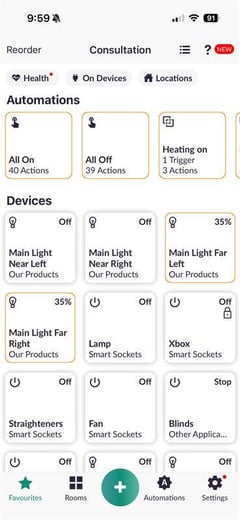
- 🏠 Go to Rooms
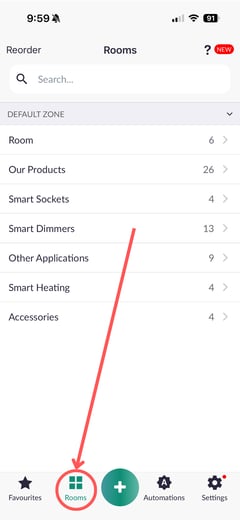
- 🔍 Select the room with your dimmer
-png-Apr-02-2026-10-15-02-4770-AM.png?width=240&height=521&name=Untitled%20design%20(1)-png-Apr-02-2026-10-15-02-4770-AM.png)
- 👆 Press and hold the dimmer tile
-png-4.png?width=240&height=521&name=Untitled%20design%20(2)-png-4.png)
- ⚙️ Tap Settings (top-right corner)
-png-3.png?width=240&height=521&name=Untitled%20design%20(3)-png-3.png)
- ⬇️ Scroll down to Multi-Press
-png-4.png?width=240&height=521&name=Untitled%20design%20(4)-png-4.png)
- 🔁 Select Mirror to Another Device
-png-2.png?width=240&height=521&name=Untitled%20design%20(5)-png-2.png)
- 🔗 Choose the device(s) you want to mirror to
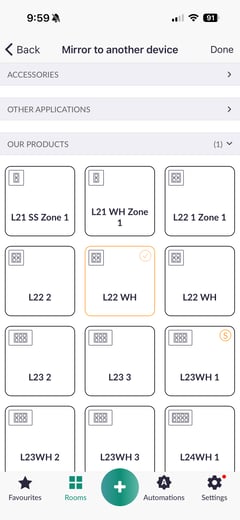
- ✅ Tap Done (top-right) to save
-png-4.png?width=240&height=521&name=Untitled%20design%20(6)-png-4.png)
💡 Helpful Tips
- ✔️ Make sure both devices are connected and visible in the app
- 🛠️ for 2-way/multiway switching please setup a 2-way switching automation
- 🔄 You can edit or remove mirroring anytime via the same settings
💬 Need Help?
If you’re having trouble moving your device, our support team is here to help.
📞 Call us at 0121 468 8987 (option 2)
📩 Or submit a support ticket online