---
title: "How to set up an \"IF-DO\" Automation"
description: Please see an example below on how to set up an IF-DO Automation This example is using a "Magic Button" as the Trigger however the Trigger could be any device on your app. Step 1 – Add an If Do Automa
---
[Skip to content](https://support.lightwaverf.com/knowledge/how-to-set-up-an-if-do-automation-0#main-content)
Open main navigation
Close main navigation
- [WhatsApp: +44 7480 784990](https://wa.me/+447480784990)
[WhatsApp: +44 7480 784990](https://wa.me/+447480784990)
How can we help you?
- There are no suggestions because the search field is empty.
1. [Help Center](https://support.lightwaverf.com/knowledge?hsLang=en)
2. [App Guidance & Automations](https://support.lightwaverf.com/knowledge/app-guidance-automations?hsLang=en)
3. [Automations](https://support.lightwaverf.com/knowledge/app-guidance-automations?hsLang=en#automations)
# How to set up an "IF-DO" Automation
The Lightwave Smart Home app allows users to set up automations that trigger specific actions based on a chosen condition. The “If-Do” automation lets you link devices, so one device’s activity automatically controls another — perfect for creating smart routines like switching on a lamp when a main light turns on.
---
### 🔧 Steps to Create an “If-Do” Automation
#### 1. **Open the Lightwave App**
Launch the Lightwave app on your smartphone.
#### 2. **Tap the Green ‘+’ Button**
At the bottom center of the screen, tap the **green '+' button**.
-png.png?width=254&height=549&name=Untitled%20design%20(39)-png.png)
#### 3. **Choose Automation Type**
From the menu, select **“Automations”**, then tap **“If-Do”** from the list of automation types.
-png.png?width=254&height=550&name=Untitled%20design%20(40)-png.png)-png.png?width=254&height=550&name=Untitled%20design%20(41)-png.png)
#### 4. **Select Your Trigger (If)**
- Tap **“Add Trigger”**.
-png.png?width=254&height=550&name=Untitled%20design%20(42)-png.png)
- **Find the relevant room**, select the device you want to use as the **trigger**, and then choose the condition (e.g., “Switch is ON”).
-jpeg.jpeg?width=254&height=550&name=Image%20(30)-jpeg.jpeg)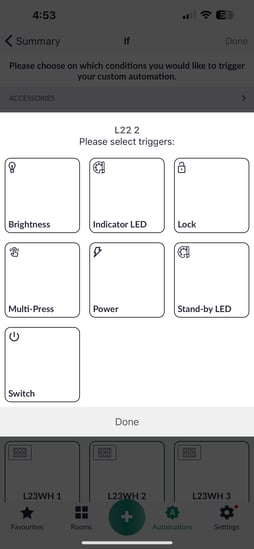
- Tap **“Done”** in the top right corner.
-png.png?width=254&height=550&name=Untitled%20design%20(43)-png.png)
#### 5. **Select Your Action (Do)**
- Tap **“Add Action”**.
-png.png?width=254&height=549&name=Untitled%20design%20(44)-png.png)
- **Find the room** containing the device you want to control.
-jpeg.jpeg?width=254&height=550&name=Image%20(32)-jpeg.jpeg)
- Select the device, choose the desired **action** (e.g., turn switch ON), and tap **“Done”**.
-jpeg.jpeg?width=254&height=550&name=Image%20(33)-jpeg.jpeg)
#### 6. **(Optional) Add Time/Day Restrictions**
Tap **“Time and Day”** to limit when this automation runs:
- Add a specific **time**
**-jpeg-1.jpeg?width=254&height=550&name=Image%20(36)-jpeg-1.jpeg)**
- Choose applicable **days of the week**
#### 7. **Review & Name Your Automation**
Provide a name for the automation (e.g., “Lamp On with Main Light”), or leave it blank to auto-generate. Check that the trigger and action settings are correct.
-jpeg.jpeg?width=254&height=550&name=Image%20(37)-jpeg.jpeg)
#### 8. **Finalise and Activate**
Make sure the **Active toggle** is turned on. You can also enable **Push Notifications** if desired. Tap **Done** to save.
---
### 🧠 Example Use Case
**“If the Main Light is turned on, then turn on the Desk Lamp.”**
- *Trigger:* Main Light (Switch ON)
- *Action:* Desk Lamp (Switch ON)
---
### 🔍 Tips
- You can **combine multiple actions** under one trigger.
- Use **Groups** or **Scenes** for broader smart control routines.
- Automations can be toggled on or off anytime from the Automations tab.
- [What do I need? & System Setup](https://support.lightwaverf.com/knowledge/what-do-i-need-system-setup?hsLang=en#main-content)
- [Getting started on the Lightwave App](https://support.lightwaverf.com/knowledge/what-do-i-need-system-setup?hsLang=en#getting-started-on-the-lightwave-app)
- [Lighting](https://support.lightwaverf.com/knowledge/what-do-i-need-system-setup?hsLang=en#lighting)
- [Heating](https://support.lightwaverf.com/knowledge/what-do-i-need-system-setup?hsLang=en#heating)
- [Automations](https://support.lightwaverf.com/knowledge/what-do-i-need-system-setup?hsLang=en#automations)
- [Third Party Integrations](https://support.lightwaverf.com/knowledge/what-do-i-need-system-setup?hsLang=en#third-party-integrations)
- [FAQ's](https://support.lightwaverf.com/knowledge/what-do-i-need-system-setup?hsLang=en#faqs)
- [Advanced Features](https://support.lightwaverf.com/knowledge/what-do-i-need-system-setup?hsLang=en#advanced-features)
- [App Guidance & Automations](https://support.lightwaverf.com/knowledge/app-guidance-automations?hsLang=en#main-content)
- [My Account](https://support.lightwaverf.com/knowledge/app-guidance-automations?hsLang=en#my-account)
- [App Guidance](https://support.lightwaverf.com/knowledge/app-guidance-automations?hsLang=en#app-guidance)
- [Automations](https://support.lightwaverf.com/knowledge/app-guidance-automations?hsLang=en#automations)
- [Troubleshooting](https://support.lightwaverf.com/knowledge/troubleshooting?hsLang=en#main-content)
- [General](https://support.lightwaverf.com/knowledge/troubleshooting?hsLang=en#general)
- [Lighting](https://support.lightwaverf.com/knowledge/troubleshooting?hsLang=en#lighting)
- [Heating](https://support.lightwaverf.com/knowledge/troubleshooting?hsLang=en#heating)
- [Power](https://support.lightwaverf.com/knowledge/troubleshooting?hsLang=en#power)
- [Automations & Hub](https://support.lightwaverf.com/knowledge/troubleshooting?hsLang=en#automations-hub)
- [Installation Guides](https://support.lightwaverf.com/knowledge/installation-guides?hsLang=en#main-content)
- [Link Plus Hub](https://support.lightwaverf.com/knowledge/installation-guides?hsLang=en#link-plus-hub)
- [Lighting](https://support.lightwaverf.com/knowledge/installation-guides?hsLang=en#lighting)
- [Power](https://support.lightwaverf.com/knowledge/installation-guides?hsLang=en#power)
- [Relays](https://support.lightwaverf.com/knowledge/installation-guides?hsLang=en#relays)
- [Heating](https://support.lightwaverf.com/knowledge/installation-guides?hsLang=en#heating)
- [Connect Series Support Archive](https://support.lightwaverf.com/knowledge/connect-series-support-archive?hsLang=en#main-content)
- [General](https://support.lightwaverf.com/knowledge/connect-series-support-archive?hsLang=en#general)
- [Lighting](https://support.lightwaverf.com/knowledge/connect-series-support-archive?hsLang=en#lighting)
- [Heating](https://support.lightwaverf.com/knowledge/connect-series-support-archive?hsLang=en#heating)
- [Power](https://support.lightwaverf.com/knowledge/connect-series-support-archive?hsLang=en#power)
- [Contact Us](https://support.lightwaverf.com/knowledge/contact-us?hsLang=en#main-content)
- [Product Returns](https://support.lightwaverf.com/knowledge/contact-us?hsLang=en#product-returns)
- [Contact Us](https://support.lightwaverf.com/knowledge/contact-us?hsLang=en#contact-us)
[-1.png?width=58&height=24&name=Lightwave%20Logo%20Green%20Small%20(320%20x%20132)-1.png "Chill listening crop-3")](http://lightwaverf.com)
[mailto:email@email.com](mailto:email@email.com)
Copyright © 2025, Lightwave