---
title: "How to set up a \"Magic Button\" on a Smart Series Dimmer"
description: " Please note: Please see an example below on how to set up an ALL ON feature on a magic button Step 1 – Add an If Do Automation Step 2 – Tap on Add Trigger Step 3 – Select the device you would"
---
[Skip to content](https://support.lightwaverf.com/knowledge/how-to-set-up-a-magic-button-on-a-smart-series-dimmer-0#main-content)
Open main navigation
Close main navigation
- [WhatsApp: +44 7480 784990](https://wa.me/+447480784990)
[WhatsApp: +44 7480 784990](https://wa.me/+447480784990)
How can we help you?
- There are no suggestions because the search field is empty.
1. [Help Center](https://support.lightwaverf.com/knowledge?hsLang=en)
2. [App Guidance & Automations](https://support.lightwaverf.com/knowledge/app-guidance-automations?hsLang=en)
3. [Automations](https://support.lightwaverf.com/knowledge/app-guidance-automations?hsLang=en#automations)
# How to set up a "Magic Button" on a Smart Series Dimmer
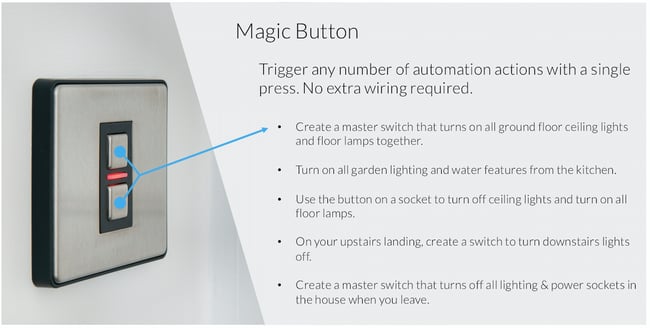
**Please note:**
- Permanent Live and Neutral wires must be connected in order to use every gang as a wireless “Magic Button” (no physical lighting circuit connected directly to the dimmer).
- If a neutral wire is NOT connected to the dimmer, Channel 1 (primary) must always be connected to a dimmable load.
- When Channel 1 is connected to a dimmable lighting circuit you can use channel 2, 3 and 4 as a wireless “Magic Button”
- All Devices must be added to the app before creating any automations
- You can assign an individual “IF DO” automation to the ON and another to the OFF button.
- Time Conditions can be added to an "IF DO" Automation - This will allow you to have a particular button on the dimmer do different functions at different times of the day.
**Please see an example below on how to set up an ALL ON feature on a magic button**
Step 1 – Add an If Do Automation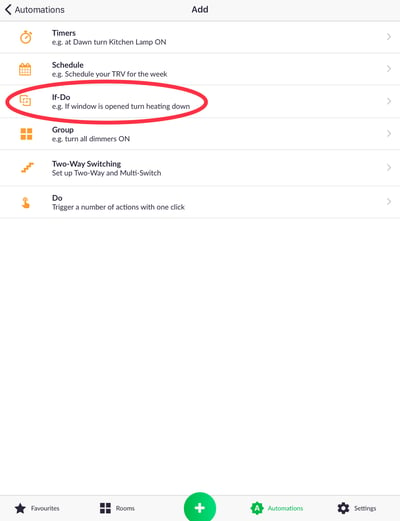
Step 2 – Tap on Add Trigger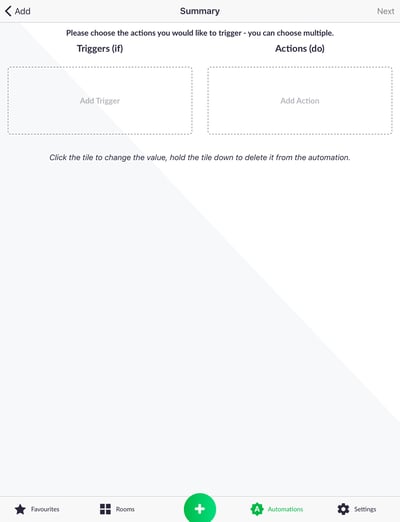
Step 3 – Select the device you would like to be the Magic Button from the list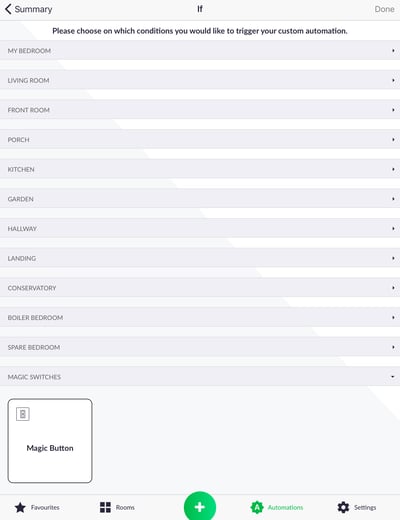
Step 4 – Select Switch so you have the option for On or Off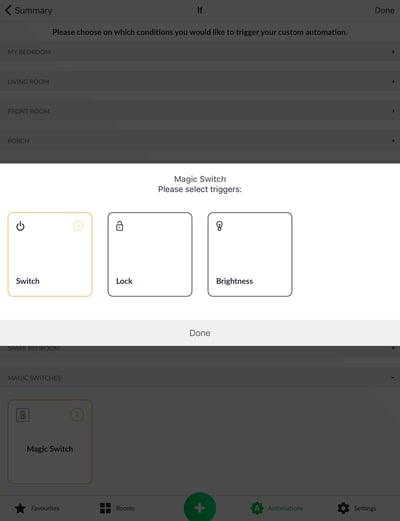
Step 5 – Tap the box to change the state then tap on Add action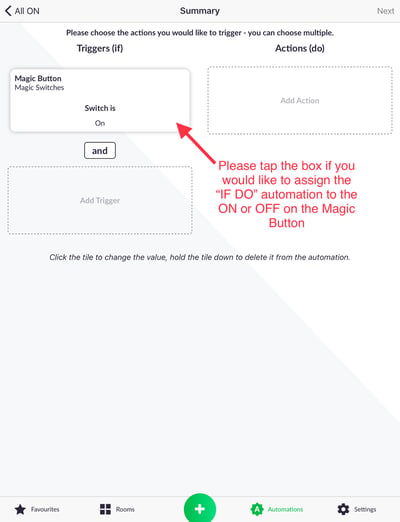
Step 6 – Select the devices you would like the Magic switch to control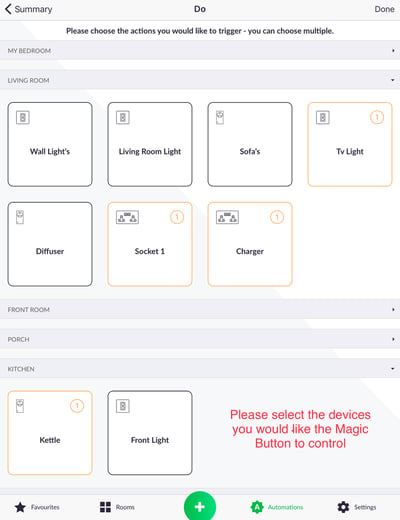
Step 7 – This is the summary page where you can change the states of the devices and add time conditions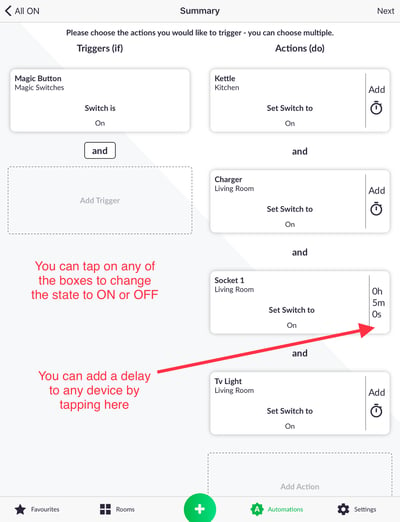
Step 8 – You can add the days and times you would like to Magic Button to operate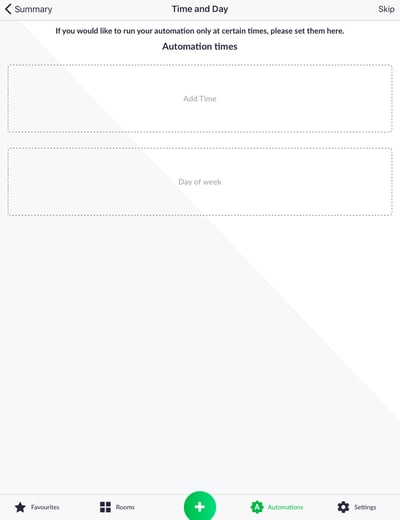
Step 9 – Insert automation name and press Done 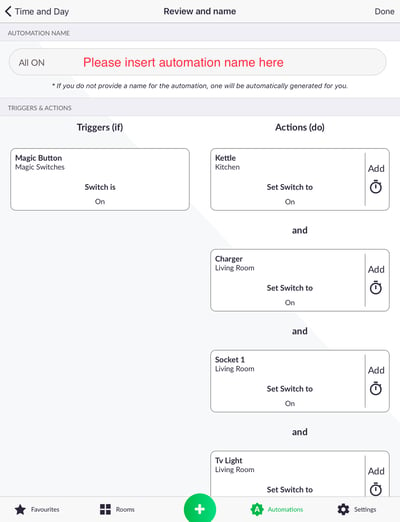
Once the Automation is complete you will see an icon like this on the automation page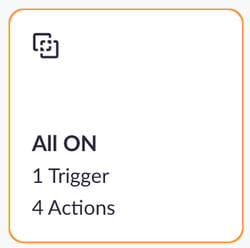
- [What do I need? & System Setup](https://support.lightwaverf.com/knowledge/what-do-i-need-system-setup?hsLang=en#main-content)
- [Getting started on the Lightwave App](https://support.lightwaverf.com/knowledge/what-do-i-need-system-setup?hsLang=en#getting-started-on-the-lightwave-app)
- [Lighting](https://support.lightwaverf.com/knowledge/what-do-i-need-system-setup?hsLang=en#lighting)
- [Heating](https://support.lightwaverf.com/knowledge/what-do-i-need-system-setup?hsLang=en#heating)
- [Automations](https://support.lightwaverf.com/knowledge/what-do-i-need-system-setup?hsLang=en#automations)
- [Third Party Integrations](https://support.lightwaverf.com/knowledge/what-do-i-need-system-setup?hsLang=en#third-party-integrations)
- [FAQ's](https://support.lightwaverf.com/knowledge/what-do-i-need-system-setup?hsLang=en#faqs)
- [Advanced Features](https://support.lightwaverf.com/knowledge/what-do-i-need-system-setup?hsLang=en#advanced-features)
- [App Guidance & Automations](https://support.lightwaverf.com/knowledge/app-guidance-automations?hsLang=en#main-content)
- [My Account](https://support.lightwaverf.com/knowledge/app-guidance-automations?hsLang=en#my-account)
- [App Guidance](https://support.lightwaverf.com/knowledge/app-guidance-automations?hsLang=en#app-guidance)
- [Automations](https://support.lightwaverf.com/knowledge/app-guidance-automations?hsLang=en#automations)
- [Troubleshooting](https://support.lightwaverf.com/knowledge/troubleshooting?hsLang=en#main-content)
- [General](https://support.lightwaverf.com/knowledge/troubleshooting?hsLang=en#general)
- [Lighting](https://support.lightwaverf.com/knowledge/troubleshooting?hsLang=en#lighting)
- [Heating](https://support.lightwaverf.com/knowledge/troubleshooting?hsLang=en#heating)
- [Power](https://support.lightwaverf.com/knowledge/troubleshooting?hsLang=en#power)
- [Automations & Hub](https://support.lightwaverf.com/knowledge/troubleshooting?hsLang=en#automations-hub)
- [Installation Guides](https://support.lightwaverf.com/knowledge/installation-guides?hsLang=en#main-content)
- [Link Plus Hub](https://support.lightwaverf.com/knowledge/installation-guides?hsLang=en#link-plus-hub)
- [Lighting](https://support.lightwaverf.com/knowledge/installation-guides?hsLang=en#lighting)
- [Power](https://support.lightwaverf.com/knowledge/installation-guides?hsLang=en#power)
- [Relays](https://support.lightwaverf.com/knowledge/installation-guides?hsLang=en#relays)
- [Heating](https://support.lightwaverf.com/knowledge/installation-guides?hsLang=en#heating)
- [Connect Series Support Archive](https://support.lightwaverf.com/knowledge/connect-series-support-archive?hsLang=en#main-content)
- [General](https://support.lightwaverf.com/knowledge/connect-series-support-archive?hsLang=en#general)
- [Lighting](https://support.lightwaverf.com/knowledge/connect-series-support-archive?hsLang=en#lighting)
- [Heating](https://support.lightwaverf.com/knowledge/connect-series-support-archive?hsLang=en#heating)
- [Power](https://support.lightwaverf.com/knowledge/connect-series-support-archive?hsLang=en#power)
- [Contact Us](https://support.lightwaverf.com/knowledge/contact-us?hsLang=en#main-content)
- [Product Returns](https://support.lightwaverf.com/knowledge/contact-us?hsLang=en#product-returns)
- [Contact Us](https://support.lightwaverf.com/knowledge/contact-us?hsLang=en#contact-us)
[-1.png?width=58&height=24&name=Lightwave%20Logo%20Green%20Small%20(320%20x%20132)-1.png "Chill listening crop-3")](http://lightwaverf.com)
[mailto:email@email.com](mailto:email@email.com)
Copyright © 2025, Lightwave