---
title: How to Reorder Your Rooms, Devices and Zones in the Lightwave App?
description: "Learn how to reorder zones and devices in the Lightwave app to keep your smart home organised. Easily adjust zone order, assign rooms to zones, and rearrange devices for quick access. Note: room order cannot currently be changed."
---
[Skip to content](https://support.lightwaverf.com/knowledge/how-to-reorder-your-rooms-devices-and-zones-in-the-lightwave-app#main-content)
Open main navigation
Close main navigation
- [WhatsApp: +44 7480 784990](https://wa.me/+447480784990)
[WhatsApp: +44 7480 784990](https://wa.me/+447480784990)
How can we help you?
- There are no suggestions because the search field is empty.
1. [Help Center](https://support.lightwaverf.com/knowledge?hsLang=en)
2. [App Guidance & Automations](https://support.lightwaverf.com/knowledge/app-guidance-automations?hsLang=en)
3. [App Guidance](https://support.lightwaverf.com/knowledge/app-guidance-automations?hsLang=en#app-guidance)
# How to Reorder Your Rooms, Devices and Zones in the Lightwave App?
## Learn how to easily reorder your rooms, devices and zones in the Lightwave app to suit your preferences. You can arrange them in any order that makes sense for your home — helping you find and control your devices more quickly.
The Lightwave Smart Home app allows you to organise your zones and devices so your setup feels natural and easy to navigate. You can adjust the order of zones and devices to match your preferences, helping you access your most-used areas and controls quickly.
---
#### **Reordering Zones**
At the top of the Rooms section, tap **Reorder** in the top-left corner. This option allows you to rearrange your zones by dragging and dropping them into your preferred order. **To move a room, press and hold it, then drag it into position.** Once you’re happy with the layout, simply exit the view — your changes will be saved automatically.
-png-1.png?width=230&height=499&name=Untitled%20design%20(44)-png-1.png)-jpeg.jpeg?width=230&height=499&name=Image%20(22)-jpeg.jpeg)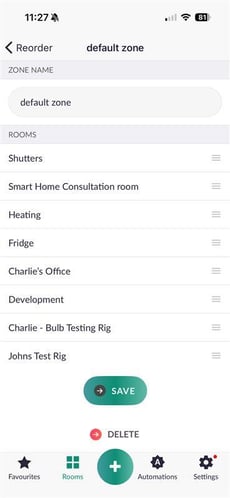
---
#### **Reordering Devices and Assigning Zones**
When you open a specific room, tap **Edit** in the top-right corner. Here, you’ll find two useful options:
-png-1.png?width=254&height=551&name=Untitled%20design%20(45)-png-1.png)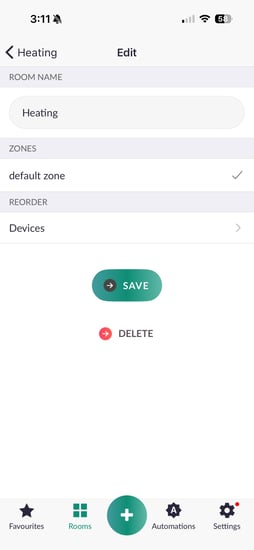
- **Zone Selection:** Choose which zone the room belongs to.
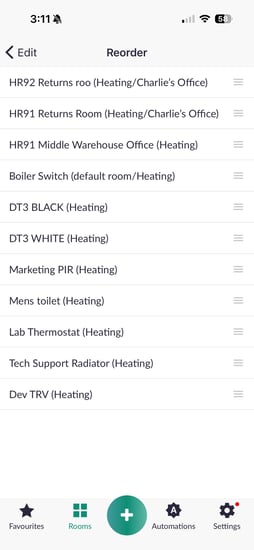
- **Device Reordering:** Under the Reorder section, use the reorder device control to arrange your devices in any order you like — for example, placing your most-used switches or lights at the top of the list. **To move a device, press and hold it, then drag it into position.**
- [What do I need? & System Setup](https://support.lightwaverf.com/knowledge/what-do-i-need-system-setup?hsLang=en#main-content)
- [Getting started on the Lightwave App](https://support.lightwaverf.com/knowledge/what-do-i-need-system-setup?hsLang=en#getting-started-on-the-lightwave-app)
- [Lighting](https://support.lightwaverf.com/knowledge/what-do-i-need-system-setup?hsLang=en#lighting)
- [Heating](https://support.lightwaverf.com/knowledge/what-do-i-need-system-setup?hsLang=en#heating)
- [Automations](https://support.lightwaverf.com/knowledge/what-do-i-need-system-setup?hsLang=en#automations)
- [Third Party Integrations](https://support.lightwaverf.com/knowledge/what-do-i-need-system-setup?hsLang=en#third-party-integrations)
- [FAQ's](https://support.lightwaverf.com/knowledge/what-do-i-need-system-setup?hsLang=en#faqs)
- [Advanced Features](https://support.lightwaverf.com/knowledge/what-do-i-need-system-setup?hsLang=en#advanced-features)
- [App Guidance & Automations](https://support.lightwaverf.com/knowledge/app-guidance-automations?hsLang=en#main-content)
- [My Account](https://support.lightwaverf.com/knowledge/app-guidance-automations?hsLang=en#my-account)
- [App Guidance](https://support.lightwaverf.com/knowledge/app-guidance-automations?hsLang=en#app-guidance)
- [Automations](https://support.lightwaverf.com/knowledge/app-guidance-automations?hsLang=en#automations)
- [Troubleshooting](https://support.lightwaverf.com/knowledge/troubleshooting?hsLang=en#main-content)
- [General](https://support.lightwaverf.com/knowledge/troubleshooting?hsLang=en#general)
- [Lighting](https://support.lightwaverf.com/knowledge/troubleshooting?hsLang=en#lighting)
- [Heating](https://support.lightwaverf.com/knowledge/troubleshooting?hsLang=en#heating)
- [Power](https://support.lightwaverf.com/knowledge/troubleshooting?hsLang=en#power)
- [Automations & Hub](https://support.lightwaverf.com/knowledge/troubleshooting?hsLang=en#automations-hub)
- [Installation Guides](https://support.lightwaverf.com/knowledge/installation-guides?hsLang=en#main-content)
- [Link Plus Hub](https://support.lightwaverf.com/knowledge/installation-guides?hsLang=en#link-plus-hub)
- [Lighting](https://support.lightwaverf.com/knowledge/installation-guides?hsLang=en#lighting)
- [Power](https://support.lightwaverf.com/knowledge/installation-guides?hsLang=en#power)
- [Relays](https://support.lightwaverf.com/knowledge/installation-guides?hsLang=en#relays)
- [Heating](https://support.lightwaverf.com/knowledge/installation-guides?hsLang=en#heating)
- [Connect Series Support Archive](https://support.lightwaverf.com/knowledge/connect-series-support-archive?hsLang=en#main-content)
- [General](https://support.lightwaverf.com/knowledge/connect-series-support-archive?hsLang=en#general)
- [Lighting](https://support.lightwaverf.com/knowledge/connect-series-support-archive?hsLang=en#lighting)
- [Heating](https://support.lightwaverf.com/knowledge/connect-series-support-archive?hsLang=en#heating)
- [Power](https://support.lightwaverf.com/knowledge/connect-series-support-archive?hsLang=en#power)
- [Contact Us](https://support.lightwaverf.com/knowledge/contact-us?hsLang=en#main-content)
- [Product Returns](https://support.lightwaverf.com/knowledge/contact-us?hsLang=en#product-returns)
- [Contact Us](https://support.lightwaverf.com/knowledge/contact-us?hsLang=en#contact-us)
[-1.png?width=58&height=24&name=Lightwave%20Logo%20Green%20Small%20(320%20x%20132)-1.png "Chill listening crop-3")](http://lightwaverf.com)
[mailto:email@email.com](mailto:email@email.com)
Copyright © 2025, Lightwave