---
title: How to Program a All On/Off (Kill Switch) on a Lightwave Dimmer
description: Learn how to program a kill switch on your Lightwave dimmer to quickly disable lighting when needed. Follow our simple step-by-step guide to set up and configure the kill switch feature.
---
[Skip to content](https://support.lightwaverf.com/knowledge/how-to-program-a-kill-switch-on-a-lightwave-dimmer#main-content)
Open main navigation
Close main navigation
- [WhatsApp: +44 7480 784990](https://wa.me/+447480784990)
[WhatsApp: +44 7480 784990](https://wa.me/+447480784990)
How can we help you?
- There are no suggestions because the search field is empty.
1. [Help Center](https://support.lightwaverf.com/knowledge?hsLang=en)
2. [App Guidance & Automations](https://support.lightwaverf.com/knowledge/app-guidance-automations?hsLang=en)
3. [Automations](https://support.lightwaverf.com/knowledge/app-guidance-automations?hsLang=en#automations)
# How to Program a All On/Off (Kill Switch) on a Lightwave Dimmer
## Learn how to program a kill switch on your Lightwave dimmer to quickly disable lighting when needed. Follow our simple step-by-step guide to set up and configure the kill switch feature.
The **Kill Switch** function allows you to use a spare gang on a multi-gang Lightwave dimmer as a master control for the other gangs on the same dimmer. Instead of controlling its own lighting circuit, the spare gang can switch multiple connected lights **on and off simultaneously**.
This is one of the most popular and practical configurations for spare gangs, especially in open-plan spaces or rooms with multiple lighting circuits.
This setup uses an **IF-DO Automation** within the Lightwave app.
👉 *New to automations? [Introduction to Automations](https://support.lightwaverf.com/knowledge/introduction-to-automations-0?hsLang=en)*
---
#### What You’ll Be Setting Up
You will create **two IF-DO automations**:
- 🔵 One for **Turning Lights ON**
- 🔴 One for **Turning Lights OFF**
Once complete:
- Pressing the **Up button** on the spare gang will turn all selected lights **ON**
- Pressing the **Down button** will turn them **OFF**
The other gangs will continue to function normally.
---
#### Before You Start
- Ensure your dimmer is fully set up in the app
- Identify which gang will act as the kill switch (this should be a spare gang)
- Decide which dimmers you want it to control
---
### 🔵 Programming the ON Command
Follow these steps to configure the spare gang to turn multiple lights **ON**.
---
### 1️⃣ Open the Lightwave App
Launch the Lightwave app on your smartphone or tablet.
-png-2.png?width=240&height=520&name=Untitled%20design%20(47)-png-2.png)
### 2️⃣ Tap the Green “+” Button
Tap the green **Plus (+)** icon in the centre of the screen.
-png-1.png?width=240&height=520&name=Untitled%20design%20(52)-png-1.png)
### 3️⃣ Select Automations
Tap **Automations**.
-png-1.png?width=240&height=519&name=Untitled%20design%20(53)-png-1.png)
### 4️⃣ Select IF-DO
Choose **IF-DO**.
-png-1.png?width=240&height=520&name=Untitled%20design%20(54)-png-1.png)
You will now see:
- **Triggers (IF)**
- **Actions (DO)**
**-png-1.png?width=240&height=520&name=Untitled%20design%20(55)-png-1.png)**
---
### 5️⃣ Add the Trigger
1. Tap **Add Trigger**
-png-1.png?width=240&height=520&name=Untitled%20design%20(56)-png-1.png)
2. Locate the spare gang in its room
-png-1.png?width=240&height=521&name=Untitled%20design%20(57)-png-1.png)
3. Select **Multi-Press**
-png-1.png?width=240&height=521&name=Untitled%20design%20(58)-png-1.png)
4. Tap **Done**
-png-1.png?width=240&height=521&name=Untitled%20design%20(59)-png-1.png)
5. Tap **Done** again in the top-right corner
-png-1.png?width=240&height=521&name=Untitled%20design%20(60)-png-1.png)
---
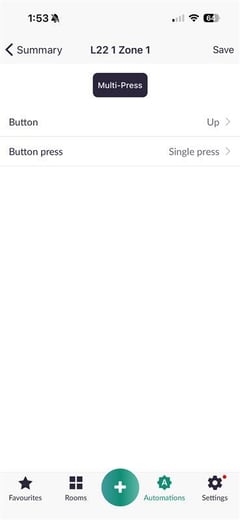
### 6️⃣ Configure the Trigger
Under **Triggers (IF)**:
- Select **Single Press**
- Choose the **Up button**
****
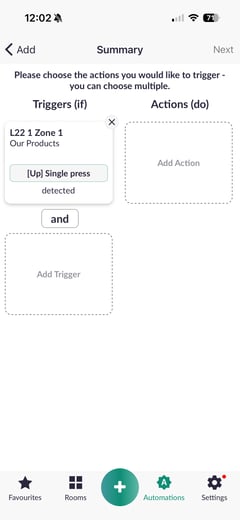
Your trigger should now read:
IF dimmer detects **Up button single press**
****
---
### 7️⃣ Add the Actions (DO)
Now move to the **Actions** section:
-png-1.png?width=240&height=521&name=Untitled%20design%20(61)-png-1.png)
1. Add the dimmers you want to control (locate them in their rooms)
2. Ensure **Switch** is selected
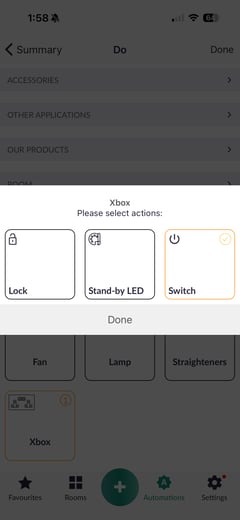
3. Confirm each device is set to **ON**
**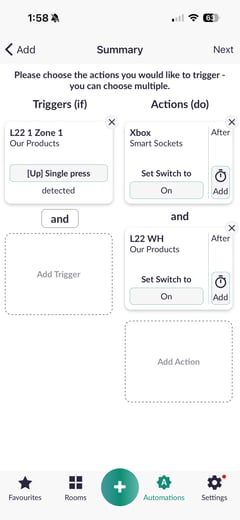**
Your automation should now read:
> IF dimmer detects Up button single press
> DO turn ON selected devices
Save the automation.
---
### 🔴 Programming the OFF Command
**Method 1**
You can use the Copy Automation feature available in the Lightwave app.
1. Open the Automations tab at the bottom of the screen.
-png.png?width=240&height=521&name=Untitled%20design%20(66)-png.png)
2. Locate the ON automation you have just created.
-png.png?width=240&height=521&name=Untitled%20design%20(67)-png.png)
3. Press and hold the automation tile.
4. In the top-right corner, tap the Copy button.
-png.png?width=240&height=521&name=Untitled%20design%20(68)-png.png)
5. This will open the Edit screen, where you can change the actions to OFF.
-png.png?width=240&height=521&name=Untitled%20design%20(69)-png.png)
6. Once all devices have been updated to OFF, tap Next.
-png.png?width=240&height=521&name=Untitled%20design%20(70)-png.png)
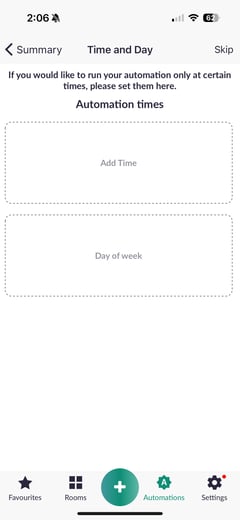
7. If you would like the automation to run at a specific time or on specific days, configure this on the next screen; otherwise, select **Skip** to proceed without a schedule.
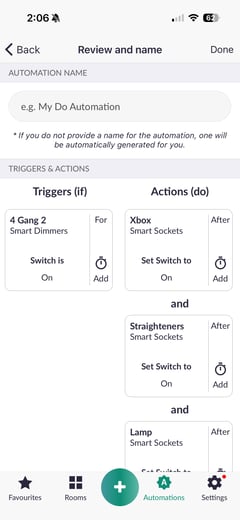
8. Enter a name for the automation, then tap Done to save it.
**Method 2**
To configure the OFF function, you will repeat the same process as above, with two small changes:
- Use the **Down button** instead of the Up button
- Set the selected devices to **OFF** instead of ON
---
### 1️⃣ Create a New IF-DO Automation
- Tap the green **+** button
- Select **Automations**
- Choose **IF-DO**
- Tap **Add Trigger**
- Select the same spare gang
- Choose **Multi-Press**
- Tap **Done**
---
### 2️⃣ Configure the Trigger
Under **Triggers (IF)**:
- Select **Single Press**
- Choose the **Down button**
Your trigger should read:
> IF dimmer detects **Down button single press**
---
### 3️⃣ Configure the Actions
Under **Actions (DO)**:
1. Select the same dimmers used in the ON automation
2. Where it says **ON**, tap it
3. Change it to **OFF**
Your automation should now read:
> IF dimmer detects Down button single press
> DO turn OFF selected dimmers
Save the automation to complete setup.
---
### ✅ Final Result
Your spare gang will now operate as a master control:
- **Up button** → Turns all selected lights ON
- **Down button** → Turns all selected lights OFF
This does not override or disable the individual gangs — it simply provides convenient whole-room control.
- [What do I need? & System Setup](https://support.lightwaverf.com/knowledge/what-do-i-need-system-setup?hsLang=en#main-content)
- [Getting started on the Lightwave App](https://support.lightwaverf.com/knowledge/what-do-i-need-system-setup?hsLang=en#getting-started-on-the-lightwave-app)
- [Lighting](https://support.lightwaverf.com/knowledge/what-do-i-need-system-setup?hsLang=en#lighting)
- [Heating](https://support.lightwaverf.com/knowledge/what-do-i-need-system-setup?hsLang=en#heating)
- [Automations](https://support.lightwaverf.com/knowledge/what-do-i-need-system-setup?hsLang=en#automations)
- [Third Party Integrations](https://support.lightwaverf.com/knowledge/what-do-i-need-system-setup?hsLang=en#third-party-integrations)
- [FAQ's](https://support.lightwaverf.com/knowledge/what-do-i-need-system-setup?hsLang=en#faqs)
- [Advanced Features](https://support.lightwaverf.com/knowledge/what-do-i-need-system-setup?hsLang=en#advanced-features)
- [App Guidance & Automations](https://support.lightwaverf.com/knowledge/app-guidance-automations?hsLang=en#main-content)
- [My Account](https://support.lightwaverf.com/knowledge/app-guidance-automations?hsLang=en#my-account)
- [App Guidance](https://support.lightwaverf.com/knowledge/app-guidance-automations?hsLang=en#app-guidance)
- [Automations](https://support.lightwaverf.com/knowledge/app-guidance-automations?hsLang=en#automations)
- [Troubleshooting](https://support.lightwaverf.com/knowledge/troubleshooting?hsLang=en#main-content)
- [General](https://support.lightwaverf.com/knowledge/troubleshooting?hsLang=en#general)
- [Lighting](https://support.lightwaverf.com/knowledge/troubleshooting?hsLang=en#lighting)
- [Heating](https://support.lightwaverf.com/knowledge/troubleshooting?hsLang=en#heating)
- [Power](https://support.lightwaverf.com/knowledge/troubleshooting?hsLang=en#power)
- [Automations & Hub](https://support.lightwaverf.com/knowledge/troubleshooting?hsLang=en#automations-hub)
- [Installation Guides](https://support.lightwaverf.com/knowledge/installation-guides?hsLang=en#main-content)
- [Link Plus Hub](https://support.lightwaverf.com/knowledge/installation-guides?hsLang=en#link-plus-hub)
- [Lighting](https://support.lightwaverf.com/knowledge/installation-guides?hsLang=en#lighting)
- [Power](https://support.lightwaverf.com/knowledge/installation-guides?hsLang=en#power)
- [Relays](https://support.lightwaverf.com/knowledge/installation-guides?hsLang=en#relays)
- [Heating](https://support.lightwaverf.com/knowledge/installation-guides?hsLang=en#heating)
- [Connect Series Support Archive](https://support.lightwaverf.com/knowledge/connect-series-support-archive?hsLang=en#main-content)
- [General](https://support.lightwaverf.com/knowledge/connect-series-support-archive?hsLang=en#general)
- [Lighting](https://support.lightwaverf.com/knowledge/connect-series-support-archive?hsLang=en#lighting)
- [Heating](https://support.lightwaverf.com/knowledge/connect-series-support-archive?hsLang=en#heating)
- [Power](https://support.lightwaverf.com/knowledge/connect-series-support-archive?hsLang=en#power)
- [Contact Us](https://support.lightwaverf.com/knowledge/contact-us?hsLang=en#main-content)
- [Product Returns](https://support.lightwaverf.com/knowledge/contact-us?hsLang=en#product-returns)
- [Contact Us](https://support.lightwaverf.com/knowledge/contact-us?hsLang=en#contact-us)
[-1.png?width=58&height=24&name=Lightwave%20Logo%20Green%20Small%20(320%20x%20132)-1.png "Chill listening crop-3")](http://lightwaverf.com)
[mailto:email@email.com](mailto:email@email.com)
Copyright © 2025, Lightwave