---
title: How to move a device to a different room in the Lightwave App
description: This article provides clear steps on how to move a device into a different room in the Lightwave Link Plus app, allowing users to move their devices around and is helpful when a device has been added in the wrong room as you don't have to delete the device and re-pair it
---
[Skip to content](https://support.lightwaverf.com/knowledge/how-to-move-a-device-to-a-different-room-in-the-lightwave-app#main-content)
Open main navigation
Close main navigation
- [WhatsApp: +44 7480 784990](https://wa.me/+447480784990)
[WhatsApp: +44 7480 784990](https://wa.me/+447480784990)
How can we help you?
- There are no suggestions because the search field is empty.
1. [Help Center](https://support.lightwaverf.com/knowledge?hsLang=en)
2. [App Guidance & Automations](https://support.lightwaverf.com/knowledge/app-guidance-automations?hsLang=en)
3. [App Guidance](https://support.lightwaverf.com/knowledge/app-guidance-automations?hsLang=en#app-guidance)
# How to move a device to a different room in the Lightwave App
## This guide explains how to move a device to a different room in the Lightwave app. This allows you to quickly reassign devices without removing or re-pairing them.
#### **🏠 Move a Device to a Different Room**
If a device has been assigned to the wrong room, you can quickly move it using the **Show in Rooms** setting—no need to delete or re-add the device.
---
#### **Before You Start**
Make sure the room you want to move the device to has already been created in the app. You can find out how to create a room in the Lightwave App [here.](https://support.lightwaverf.com/knowledge/how-to-create-a-room-and-zone-on-the-linkplus-app?hsLang=en)
---
#### **⚙️ Update the Device Room**
Follow these steps to move your device:
**1. Open the device settings**
Go to the room where the device is currently located and tap on the device.
Then select the **settings icon** in the top-right corner.
-png.png?width=254&height=551&name=Untitled%20design%20(81)-png.png)-png.png?width=254&height=551&name=Untitled%20design%20(82)-png.png)
**2. Select “Show in Rooms”**
In the device settings, tap **Show in Rooms** to view its current room assignment.
-png.png?width=254&height=551&name=Untitled%20design%20(84)-png.png)
**3. Choose the correct room**
You’ll see a list of available rooms. From here:
- Untick the room the device is currently assigned to
- Tick the room you want the device to appear in
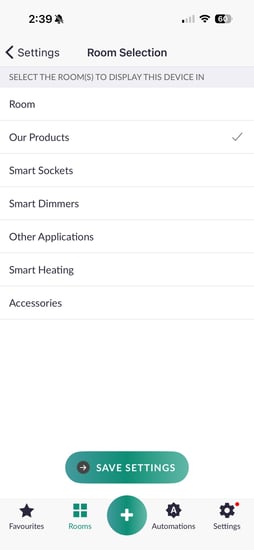
**4. Save your changes**
Tap **Save Settings** to apply the update.
-png.png?width=254&height=551&name=Untitled%20design%20(85)-png.png)
**5. Confirm the change**
Return to the **Rooms** view and check that the device now appears in the correct room.
---
#### 💡 Tips
- Devices can be assigned to **multiple rooms** if needed
- Changes apply instantly, but you can refresh the app if they don’t appear straight away
- If the device is still in the wrong room, double-check your selections and save again
---
#### 💬 Need Help?
If you’re having trouble moving your device, our support team is here to help.
📞 Call us at 0121 468 8987 (option 2)
📩 [Or submit a support ticket online](https://support.lightwaverf.com/knowledge/contact-technical-support?hsLang=en)
- [What do I need? & System Setup](https://support.lightwaverf.com/knowledge/what-do-i-need-system-setup?hsLang=en#main-content)
- [Getting started on the Lightwave App](https://support.lightwaverf.com/knowledge/what-do-i-need-system-setup?hsLang=en#getting-started-on-the-lightwave-app)
- [Lighting](https://support.lightwaverf.com/knowledge/what-do-i-need-system-setup?hsLang=en#lighting)
- [Heating](https://support.lightwaverf.com/knowledge/what-do-i-need-system-setup?hsLang=en#heating)
- [Automations](https://support.lightwaverf.com/knowledge/what-do-i-need-system-setup?hsLang=en#automations)
- [Third Party Integrations](https://support.lightwaverf.com/knowledge/what-do-i-need-system-setup?hsLang=en#third-party-integrations)
- [FAQ's](https://support.lightwaverf.com/knowledge/what-do-i-need-system-setup?hsLang=en#faqs)
- [Advanced Features](https://support.lightwaverf.com/knowledge/what-do-i-need-system-setup?hsLang=en#advanced-features)
- [App Guidance & Automations](https://support.lightwaverf.com/knowledge/app-guidance-automations?hsLang=en#main-content)
- [My Account](https://support.lightwaverf.com/knowledge/app-guidance-automations?hsLang=en#my-account)
- [App Guidance](https://support.lightwaverf.com/knowledge/app-guidance-automations?hsLang=en#app-guidance)
- [Automations](https://support.lightwaverf.com/knowledge/app-guidance-automations?hsLang=en#automations)
- [Troubleshooting](https://support.lightwaverf.com/knowledge/troubleshooting?hsLang=en#main-content)
- [General](https://support.lightwaverf.com/knowledge/troubleshooting?hsLang=en#general)
- [Lighting](https://support.lightwaverf.com/knowledge/troubleshooting?hsLang=en#lighting)
- [Heating](https://support.lightwaverf.com/knowledge/troubleshooting?hsLang=en#heating)
- [Power](https://support.lightwaverf.com/knowledge/troubleshooting?hsLang=en#power)
- [Automations & Hub](https://support.lightwaverf.com/knowledge/troubleshooting?hsLang=en#automations-hub)
- [Installation Guides](https://support.lightwaverf.com/knowledge/installation-guides?hsLang=en#main-content)
- [Link Plus Hub](https://support.lightwaverf.com/knowledge/installation-guides?hsLang=en#link-plus-hub)
- [Lighting](https://support.lightwaverf.com/knowledge/installation-guides?hsLang=en#lighting)
- [Power](https://support.lightwaverf.com/knowledge/installation-guides?hsLang=en#power)
- [Relays](https://support.lightwaverf.com/knowledge/installation-guides?hsLang=en#relays)
- [Heating](https://support.lightwaverf.com/knowledge/installation-guides?hsLang=en#heating)
- [Connect Series Support Archive](https://support.lightwaverf.com/knowledge/connect-series-support-archive?hsLang=en#main-content)
- [General](https://support.lightwaverf.com/knowledge/connect-series-support-archive?hsLang=en#general)
- [Lighting](https://support.lightwaverf.com/knowledge/connect-series-support-archive?hsLang=en#lighting)
- [Heating](https://support.lightwaverf.com/knowledge/connect-series-support-archive?hsLang=en#heating)
- [Power](https://support.lightwaverf.com/knowledge/connect-series-support-archive?hsLang=en#power)
- [Contact Us](https://support.lightwaverf.com/knowledge/contact-us?hsLang=en#main-content)
- [Product Returns](https://support.lightwaverf.com/knowledge/contact-us?hsLang=en#product-returns)
- [Contact Us](https://support.lightwaverf.com/knowledge/contact-us?hsLang=en#contact-us)
[-1.png?width=58&height=24&name=Lightwave%20Logo%20Green%20Small%20(320%20x%20132)-1.png "Chill listening crop-3")](http://lightwaverf.com)
[mailto:email@email.com](mailto:email@email.com)
Copyright © 2025, Lightwave