---
title: How to copy an automation
description: Learn how to quickly duplicate an automation in the Lightwave app, edit settings, and save time by reusing your existing smart home routines.
---
[Skip to content](https://support.lightwaverf.com/knowledge/how-to-duplicate-an-automation#main-content)
Open main navigation
Close main navigation
- [WhatsApp: +44 7480 784990](https://wa.me/+447480784990)
[WhatsApp: +44 7480 784990](https://wa.me/+447480784990)
How can we help you?
- There are no suggestions because the search field is empty.
1. [Help Center](https://support.lightwaverf.com/knowledge?hsLang=en)
2. [App Guidance & Automations](https://support.lightwaverf.com/knowledge/app-guidance-automations?hsLang=en)
3. [Automations](https://support.lightwaverf.com/knowledge/app-guidance-automations?hsLang=en#automations)
# How to copy an automation
## Easily create a copy of an existing automation to save time and reuse your settings. This is perfect for setting up similar routines with small adjustments.
#### **🔧 Step-by-Step Guide**
1. **Open the Lightwave app**
Launch the Lightwave app on your smartphone or tablet.
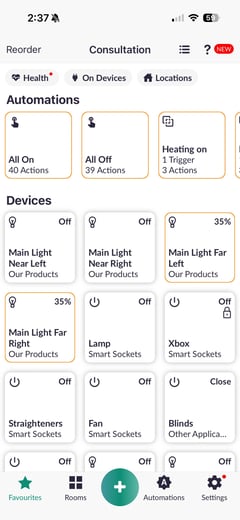
2. **Go to ‘Automations’**
Tap **Automations** from the bottom navigation bar.
-png.png?width=240&height=521&name=Untitled%20design%20(89)-png.png)
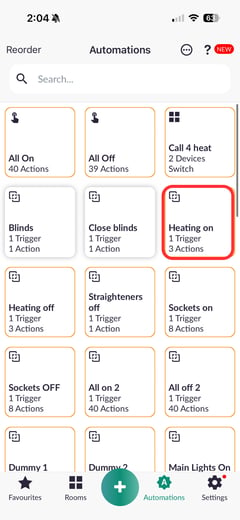
3. **Press and hold the tile for the automation you would like to duplicate.**
On the Automations page, locate the relevant automation tile and press and hold it.
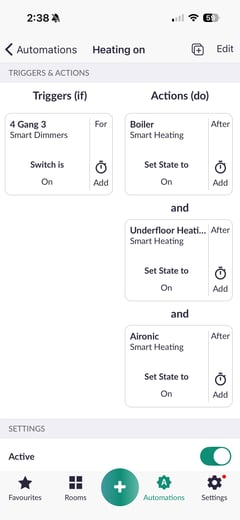
4. **Tap the Duplicate Icon**
In the top right corner, tap the **square icon with a plus (+)** next to *Edit*.
-png.png?width=240&height=521&name=Untitled%20design%20(90)-png.png)
5. **Edit Your Automation**
The edit screen will appear. Make any changes needed (e.g. devices, triggers, schedules).
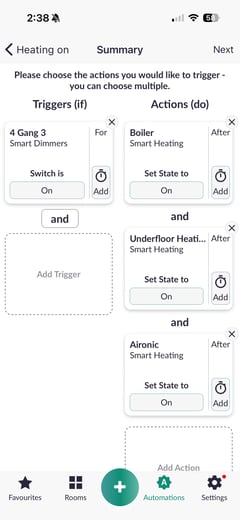
6. **Tap ‘Next’**
Once you're happy with your edits, tap **Next** in the top right corner.
-png.png?width=240&height=521&name=Untitled%20design%20(91)-png.png)
7. **Tap 'Skip'**
If you need to adjust the time or day, you can do so here. Otherwise, if no changes are required, tap “Skip” to continue.
-png.png?width=240&height=521&name=Untitled%20design%20(92)-png.png)
8. **Name Your Automation**
Enter a name for your duplicated automation.
-png.png?width=240&height=521&name=Untitled%20design%20(93)-png.png)
9. **Save Your Automation**
Tap **Done** in the top right corner to finish.
-png.png?width=240&height=521&name=Untitled%20design%20(94)-png.png)
---
#### 🔄 Tips
- Duplicating automations is a quick way to create variations (e.g. On/Off Automation) without having to create the same automation again.
- Make sure to rename your automation clearly to avoid confusion
- Double-check triggers and timings to prevent overlaps with the original
---
#### ❓ Need Help?
If you're unable to duplicate an automation or something isn’t working as expected, please contact our support team:
**support@lightwave.hs-inbox.com**
**0121 468 8987 option 2**
- [What do I need? & System Setup](https://support.lightwaverf.com/knowledge/what-do-i-need-system-setup?hsLang=en#main-content)
- [Getting started on the Lightwave App](https://support.lightwaverf.com/knowledge/what-do-i-need-system-setup?hsLang=en#getting-started-on-the-lightwave-app)
- [Lighting](https://support.lightwaverf.com/knowledge/what-do-i-need-system-setup?hsLang=en#lighting)
- [Heating](https://support.lightwaverf.com/knowledge/what-do-i-need-system-setup?hsLang=en#heating)
- [Automations](https://support.lightwaverf.com/knowledge/what-do-i-need-system-setup?hsLang=en#automations)
- [Third Party Integrations](https://support.lightwaverf.com/knowledge/what-do-i-need-system-setup?hsLang=en#third-party-integrations)
- [FAQ's](https://support.lightwaverf.com/knowledge/what-do-i-need-system-setup?hsLang=en#faqs)
- [Advanced Features](https://support.lightwaverf.com/knowledge/what-do-i-need-system-setup?hsLang=en#advanced-features)
- [App Guidance & Automations](https://support.lightwaverf.com/knowledge/app-guidance-automations?hsLang=en#main-content)
- [My Account](https://support.lightwaverf.com/knowledge/app-guidance-automations?hsLang=en#my-account)
- [App Guidance](https://support.lightwaverf.com/knowledge/app-guidance-automations?hsLang=en#app-guidance)
- [Automations](https://support.lightwaverf.com/knowledge/app-guidance-automations?hsLang=en#automations)
- [Troubleshooting](https://support.lightwaverf.com/knowledge/troubleshooting?hsLang=en#main-content)
- [General](https://support.lightwaverf.com/knowledge/troubleshooting?hsLang=en#general)
- [Lighting](https://support.lightwaverf.com/knowledge/troubleshooting?hsLang=en#lighting)
- [Heating](https://support.lightwaverf.com/knowledge/troubleshooting?hsLang=en#heating)
- [Power](https://support.lightwaverf.com/knowledge/troubleshooting?hsLang=en#power)
- [Automations & Hub](https://support.lightwaverf.com/knowledge/troubleshooting?hsLang=en#automations-hub)
- [Installation Guides](https://support.lightwaverf.com/knowledge/installation-guides?hsLang=en#main-content)
- [Link Plus Hub](https://support.lightwaverf.com/knowledge/installation-guides?hsLang=en#link-plus-hub)
- [Lighting](https://support.lightwaverf.com/knowledge/installation-guides?hsLang=en#lighting)
- [Power](https://support.lightwaverf.com/knowledge/installation-guides?hsLang=en#power)
- [Relays](https://support.lightwaverf.com/knowledge/installation-guides?hsLang=en#relays)
- [Heating](https://support.lightwaverf.com/knowledge/installation-guides?hsLang=en#heating)
- [Accessories](https://support.lightwaverf.com/knowledge/installation-guides?hsLang=en#accessories)
- [Connect Series Support Archive](https://support.lightwaverf.com/knowledge/connect-series-support-archive?hsLang=en#main-content)
- [General](https://support.lightwaverf.com/knowledge/connect-series-support-archive?hsLang=en#general)
- [Lighting](https://support.lightwaverf.com/knowledge/connect-series-support-archive?hsLang=en#lighting)
- [Heating](https://support.lightwaverf.com/knowledge/connect-series-support-archive?hsLang=en#heating)
- [Power](https://support.lightwaverf.com/knowledge/connect-series-support-archive?hsLang=en#power)
- [Contact Us](https://support.lightwaverf.com/knowledge/contact-us?hsLang=en#main-content)
- [Product Returns](https://support.lightwaverf.com/knowledge/contact-us?hsLang=en#product-returns)
- [Contact Us](https://support.lightwaverf.com/knowledge/contact-us?hsLang=en#contact-us)
[-1.png?width=58&height=24&name=Lightwave%20Logo%20Green%20Small%20(320%20x%20132)-1.png "Chill listening crop-3")](http://lightwaverf.com)
[mailto:email@email.com](mailto:email@email.com)
Copyright © 2025, Lightwave