IF-DO automations in the Lightwave App allow for advanced logic, including time-delayed actions.
This is ideal for setups where you want devices to respond to motion with a delay—for example, turning off lights 5 minutes after no motion is detected.
Step-by-Step Guide
-
Launch the Lightwave App on your mobile device.
-
Tap the green (+) icon in the center of the screen.
-
Select Automations.
-png-2.png?width=254&height=549&name=Untitled%20design%20(18)-png-2.png)
-
Tap IF-DO as the automation type.
-png-1.png?width=254&height=550&name=Untitled%20design%20(22)-png-1.png)
Configure Your Trigger and Action
Trigger (IF):
-
Tap to add a trigger.
-png-1.png?width=254&height=550&name=Untitled%20design%20(23)-png-1.png)
-
Select your Motion Sensor.
-
Set the action to Motion.
-png-1.png?width=254&height=550&name=Untitled%20design%20(24)-png-1.png)
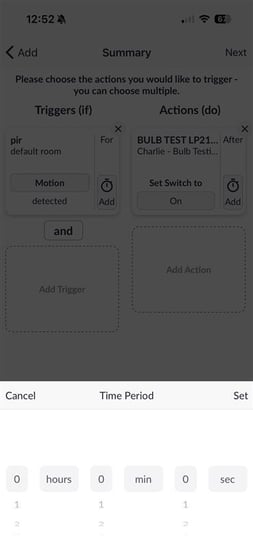
- Next to the motion sensor, you'll see a "For" preset - this is how long motion should be detected for i.e., If motion is detected for a minute, turn the dimmer on.
-png-1.png?width=254&height=549&name=Untitled%20design%20(71)-png-1.png)
Action (DO):
-
Tap to add an action.
-png-1.png?width=254&height=550&name=Untitled%20design%20(25)-png-1.png)
-
Select the dimmer (or any device) you want to control.
-png-1.png?width=254&height=550&name=Untitled%20design%20(26)-png-1.png)
Final Steps
-
Tap Next once your trigger and action are set.
-png-1.png?width=254&height=549&name=Untitled%20design%20(28)-png-1.png)
-
Give your automation a descriptive name (e.g., Hallway Lights - Auto Off).
-jpeg.jpeg?width=254&height=549&name=Image%20(16)-jpeg.jpeg)
-
Tap Done to save your automation.
Tips
-
Use IF-DO automations for flexible scheduling, multiple triggers, and delayed actions.
-
You can edit, disable, or delete automations anytime under the Automations tab.