🔧 Step-by-Step Guide
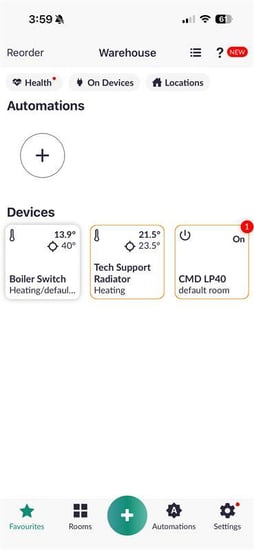
1. Open the Lightwave App
Launch the Lightwave app on your smartphone or tablet.
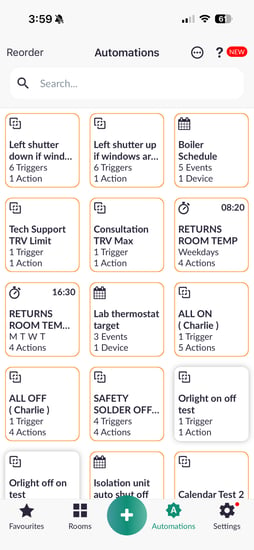
2. Go to ‘Automations’
Tap Automations from the bottom navigation bar.
-png.png?width=254&height=551&name=Untitled%20design%20(77)-png.png)
3. Select Your Automation
Find the automation you want to edit, then press and hold its tile.
4. Tap ‘Edit’
Tap Edit in the top right corner of the screen.
-png.png?width=254&height=551&name=Untitled%20design%20(78)-png.png)
5. Make Your Changes
Update the automation as needed (e.g., adjust times, devices, or actions), then tap Next.
-png.png?width=254&height=551&name=Untitled%20design%20(79)-png.png)
6. Save Your Automation
On the final screen, tap Save to apply your changes.
-png.png?width=254&height=551&name=Untitled%20design%20(80)-png.png)
🔄 Tips
- Changes take effect immediately after saving
- If your automation doesn’t behave as expected, double-check trigger times and device selections
- You can repeat these steps at any time to refine your setup
❓ Need Help?
If you're unable to edit an automation or changes aren’t saving correctly, please contact our support team for further assistance.
support@lightwave.hs-inbox.com
0121 468 8987 option 2