Note: If you haven't yet downloaded the Link Plus app and set up your Link Plus, you can do so here
-
Start the Migration Process:
-
Open the Link Plus app.
-
Tap the green plus (+) icon at the bottom of the screen.
-png-1.png?width=250&height=541&name=Untitled%20design%20(4)-png-1.png)
-
Select Devices, then choose Migrate from Connect Series.
-png-2.png?width=250&height=541&name=Untitled%20design%20(6)-png-2.png)
-png-1.png?width=250&height=541&name=Untitled%20design%20(7)-png-1.png)
-
-
Log In with Your Connect Series Credentials:
-
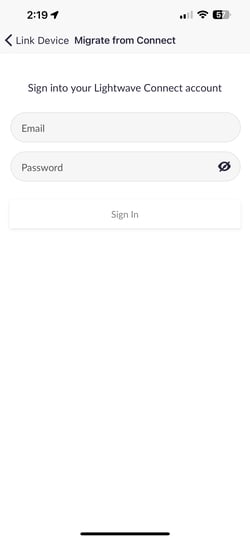
When prompted, log in using your existing Lightwave Connect Series login details.
-
-
Import and Assign Your Devices:
-
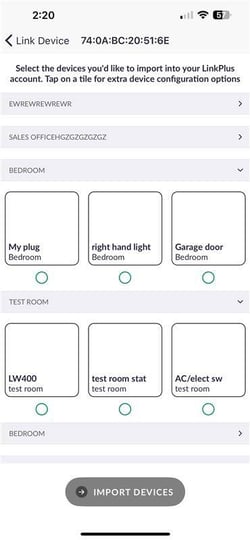
Your current devices will appear in the app.
-
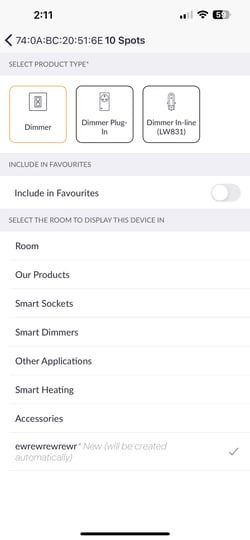
Tap each device, select its type, and assign it to a room (a “Default Room” is available). Once you have selected the type of device, please press the back button in the top left-hand side of your screen to select more devices. Ensure you click into every single room.
-
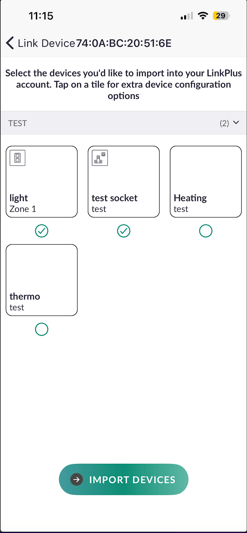
Once the devices of your choice are selected, tap Import Devices in the centre of the screen.
-png-1.png?width=250&height=541&name=Untitled%20design%20(8)-png-1.png)
-
-
Complete the Setup:
-
The migration process takes around 5–10 minutes.
-
After completion, your devices will be fully set up under the Lightwave Link Plus system.
-
Note:
The Lightwave Link Plus hub will need to stay connected to the internet to provide continuous app control however, automations will run if internet connectivity is lost.